Over the past several years we have migrated away from Apple servers to a more reliable and affordable solution from Synology. These servers have multiple redundant hard drives that can be changed on the fly (while people are working) and do not have complex operating systems that can crash, like the Apple servers do. Although these new Synology servers are more compatible with Windows machines (PC’s), there are several issues with compatibility for Macs.
Below, you will find information on the advantages of these servers (why we switched), and also some of the problems we have experienced, and the reasons for the problems. Although we cannot fix all of the issues with compatibility, we have found workarounds for some of the issues and ways to minimize the impact on older Apple operating systems.
Advantages:
- REDUNDANCY -- The Synology servers feature a redundant hard drive technology called (RAID-10.) This allows one drive (and in some cases two drives) to fail, with no loss of data or performance of the server. We receive an email when a drive fails, and are able to pull the bad drive and replace it, without anyone having to log off the server. They also feature redundant power supplies for added reliability if a power supply were to fail.
- LESS POWER -- The Synology servers use less than ⅓ of the power of a Mac Pro server. This results in a significant savings in energy costs across the company.
- BETTER ACCESS -- External access (without a VPN) is now available to the servers at most sites. This was not possible with the Mac servers. In addition to this, FTP access is available on the Synology servers, allowing users to FTP content directly to the server from inside or outside the company.
- MORE RELIABLE BACKUPS -- The new Synology servers are backed up to across sites, allowing us to have an offsite copy of the data in case of a disaster such as fire or flood. This off-site backup also allows us to restore files or folders that have been accidentally deleted by users. In addition to the cross-site backups, we have an additional layer of protection with a second backup called Amazon Glacier.
- COST -- The cost of the Synology servers (with 24 TB of storage included) is less than ⅓ of the cost of a typical Apple server.
Problems with OSX:
As many of you have noticed, the Synology servers do not behave the same as Mac servers in several ways. There are two protocols that we can use to connect to these servers, AFP and SMB, and neither works perfectly from a Mac. The following is a breakdown of the two protocols, the problems associated with each, how to connect using each protocol and some possible ways to minimize or workaround any of the problems you may experience.
AFP:
AFP has been the preferred protocol used by Apple for decades. Although Apple is working on phasing it out (in an effort to switch to SMB) they are still very much tied to the protocol and it enjoys widespread use among Mac users
To connect via AFP, do the following (this example uses the IP address of Robusta for the example.)
- From the Finder menu at the top of the screen, select “Go | Connect to Server…”
- In the Server Address box type afp://10.1.10.200/DR (this example uses the DR, server, so the DE and MD would type their specific address and share name.)
- Log in using your personal credentials (usually firstname.lastname and your user-specific password.)
Synology blames the problems associated with AFP, on Apple. They claim that Apple did not work with them on making the server compatible with the protocol, so it's not perfect. Synology attempted to make it better in the latest revision of their DSM (the software they use to run the server) but it still does not behave like it should. It appears that Apple keeps some information about the protocol a secret, and this makes it very difficult for other companies to produce software that is fully compatible with Macs using the AFP protocol.
SYMPTOMS -- The problem that most users experience when connecting to the Synology servers using the AFP protocol is related to files jumping around or disappearing. This is an issue with how the files are displayed in finder, and not with the files actually moving or changing on the server. It seems that folders with large numbers of files are most susceptible to this problem. Keeping the number of files in each folder to a minimum, might help with this issue.
SMB:
Sometimes referred to as CIFS or Samba, the SMB protocol is the preferred connection method for Windows based PCs. Although it has proven to work flawlessly with Windows, there have been some problems when using SMB to connect from Macs.
To connect via SMB from a mac, do the following (this example uses the IP address of Robusta for the example.)
- From the Finder menu at the top of the screen, select “Go | Connect to Server…”
- In the Server Address box type smb://10.1.10.200/DR (this example uses the DR, server, so the DE and MD would type their specific address and share name.)
- Log in using your personal credentials (usually firstname.lastname and your user-specific password.)
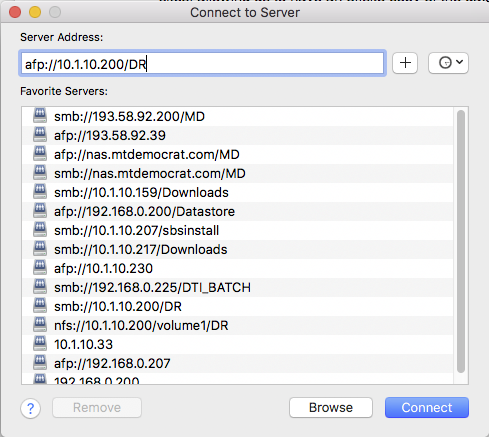
Most Mac users have found SMB to work better for them than AFP. The problems with SMB on Mac OSX arise from the inability to create working shortcuts, as well as the inability of the SMB protocol to recognize some characters that are acceptable in AFP filenames, but not allowed under the SMB protocol.
SHORTCUTS -- When attempting to create an "alias" from a folder on an SMB connection, the alias is actually created as a Windows Shortcut, and the Mac does not know how to open the shortcut. It just appears as a Unix executable file. When clicked, it tries to execute the file in a Terminal window and fails.
Unfortunatlly, there are no easy workarounds for this problem. The closest thing to a fix that is available to us, is to simply map commonly used paths directly to the desktop using Finder. This is accomplished in the same manner as connecting to the server, but you specify the full path of the folder in the Server Address box. Creating a shortcut connection to the folder /dailynews/email_ads/ would look like this:
smb://10.1.10.200/DR/dailynews/email_ads/
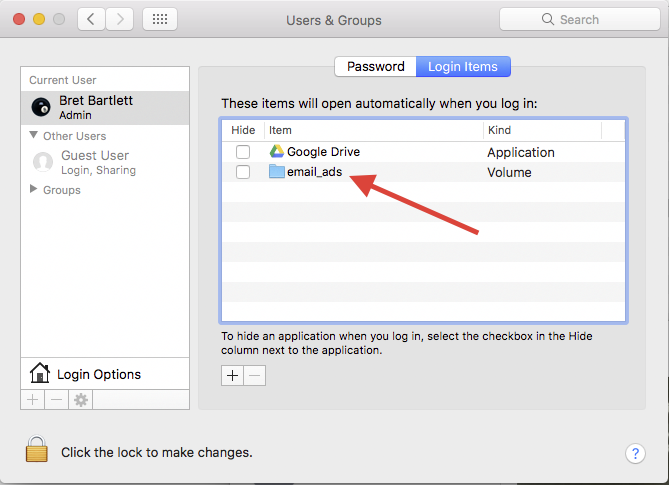
This would create a direct link to that folder on our desktop. The link will appear as if it's another server on your desktop. To make this shortcut re-connect every time on reboot, you would do the following:
Open "System Preferences" from the Apple Menu in the top left corner, click on "Users and Groups", select your user and hit the "Login Items" tab on the right. Drag the new shortcut (looks like a server) directly into the white box. This will place that connection in your startup items. OSX will then automatically connect to that volume each time you boot your machine.
INVALID CHARACTERS AND LONG FILENAMES -- While AFP permits almost any character in a filename, there are certain characters that are not valid using SMB. The following characters are not permitted in SMB filenames
:*/\?<>"|
Any character you can create using the CTRL key is also invalid for a filename using SMB. Some of these characters were previously used on our servers when AFP was the primary means of connecting to the OSX based servers. This caused some pain during the initial cutover to the new servers, but should not be an issue going forward as long as everyone refrains from using any of the invalid characters listed above.
We also had a number of very long filenames on some of the servers. The filename character limit is 255 in SMB. We likely had some that exceeded that on our initial cutover. Since most people don't use names anywhere close to 255 characters, this has not been too much of a problem, but should be noted.
Conclusion:
Although the transition has not been easy, it will only get better going forward. With Apple moving toward using SMB exclusively, and Synology updating their operating system every few months, the compatibility between our Macs and the Synology servers should only continue to improve. We will support the use of both protocols, and you can choose to connect to the server with whichever one works best for you. If you come across a problem that you don't think we have documented here, please put in a ticket to help@mcnaughton.media to document it. That will allow us to either fix the problem, or search for a workaround.
0 Comments