Contact help@mcnaughton.media if you'd like to add a link or category to our navigational menu.
Homepage blocks appear on desktop and mobile devices on the homepage. They are powered by categories. A category header clicks to its hub. The articles click to the single post pages.
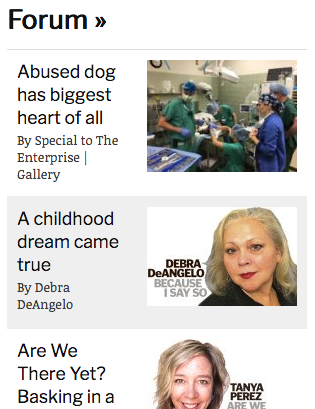
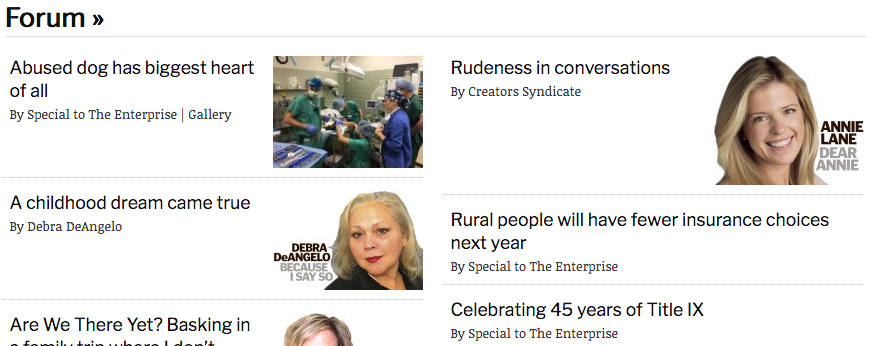
Admins can use a link like this to mange the settings (replace w/your domain): http://www.davisenterprise.com/wp-admin/admin.php?page=general_settings&submenu=2
Four elements need to be set when changing the block menu:
1. Menu Name: The display text
2. Menu Slug: A unique slug, should match any categories used
3. Link to Category ID: Used for linking categories
4. Order: An integer showing how to sort the block/menu items
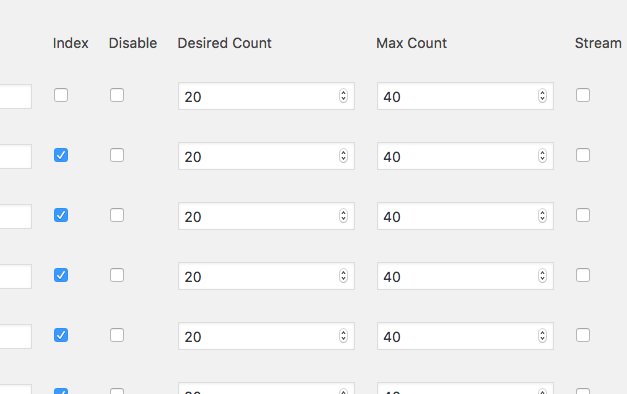
5. Index: Checking this box is what makes it appear as a block
6. Desired Count: How many items you usually want to display
7. Max Count: How many items you're willing to display when pagination is honored and you've "overbooked" available space
8. Stream: Check this box to ignore pagination completely. Otherwise, pagination always trumps time as a sorting parameter. Note: checking this box means Max Count no longer applies.
Sometimes it's hard to remove a block item, or sometimes you just want to disable something. To disable a menu item, check the "Disable" checkbox.
Below is an image of what the more advanced area of the settings screen looks like. Reference the help article on the navigational menu for other elements.
0 Comments