Contact help@mcnaughton.media if you'd like to add a link or category to our navigational menu.
The navigational menu appears on desktops in the left hand side of the page, and on mobile devices in the so-called "hamburger" menu fixed in the top-right. This Broadsheet theme feature is configured by an administrator on the same page she configures homepage blocks.
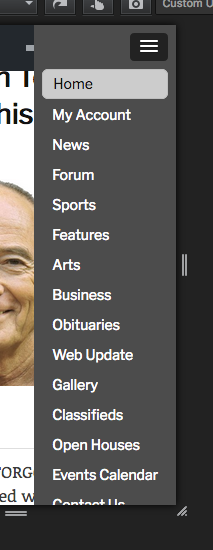
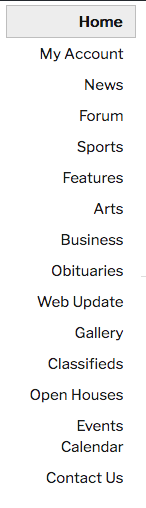
A link can point anywhere. A category has interesting behavior on the homepage: if possible, it will jump to a block of content rather than click to its hub. On non-homepages, a category will click to its hub.
Admins can use a link like this to mange the settings (replace w/your domain): http://www.davisenterprise.com/wp-admin/admin.php?page=general_settings&submenu=2
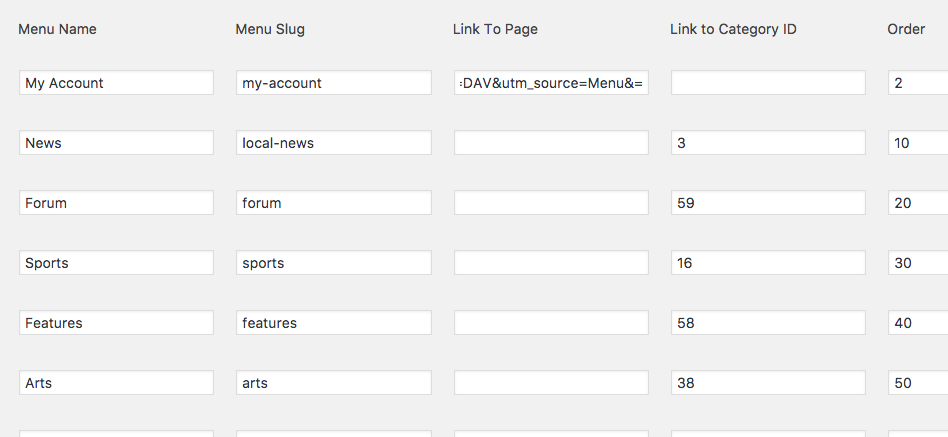
Four elements need to be set when changing the navigational menu:
1. Menu Name: The display text
2. Menu Slug: A unique slug, should match any categories used
3. Link To Page: A URI. Used when no category is used and a regular link is desired. A trailing slash will be added to this URL
OR
3. Link to Category ID: Used for linking categories
4. Order: An integer showing how to sort the menu items
Sometimes it's hard to remove a menu item, or sometimes you just want to disable something. To disable a menu item, check the "Disable" checkbox.
Below is an image of what the settings screen looks like.
0 Comments