This article will guide you through the steps of connecting your iOS device (iPhone or iPad) to the company VPN.
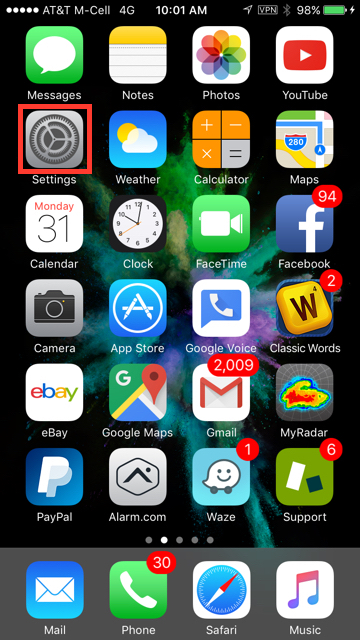
Select "Settings" from your home screen.
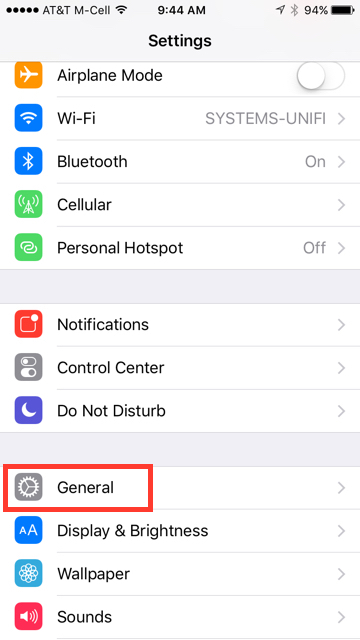
Select "General."
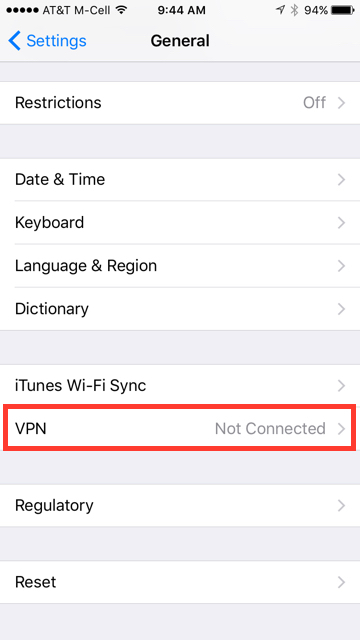
Scroll down to where it says "VPN" and click on it.
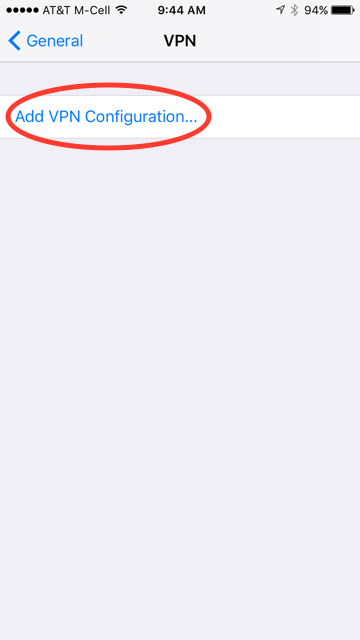
Click "Add VPN Configuration...."
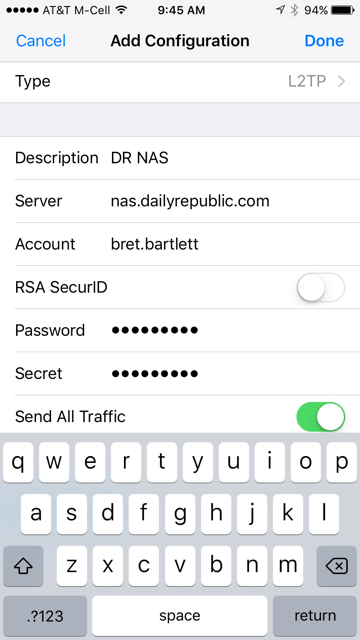
- Under "Type" select L2TP
- For "Description, label it something you will recognize, like "Work VPN."
- Under "Account" place your NAS account username. This name takes the form of firstname.lastname.
- In the "Password" field, place your NAS password. If you do not know your NAS password, please put in a request at help@mcnuaghton.media and we can reset it for you.
- Under "Secret" place the phrase 2ndF=Fisk
- Make sure the "Send All Traffic" switch is turned ON.
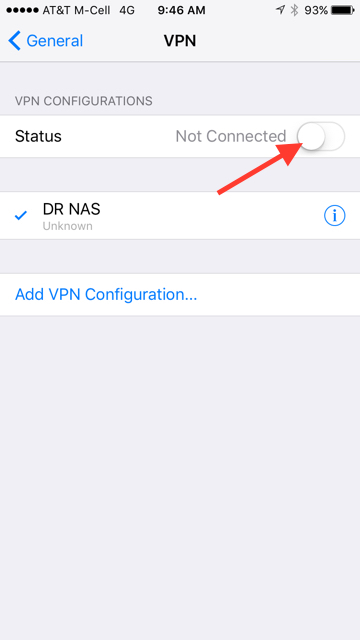
- Once you have the connection added, go back out to the General > VPN screen and you can select the account. You will know it is selected because there will be a check next to the name.
- Then flip the "Status" switch and it should change from "Not Connected" to "Connecting," and then finally it will say "Connected." Connecting should take no longer than 15 or 20 seconds. If it fails to connect, contact the Systems Department for help at help@mcnaughton.media.
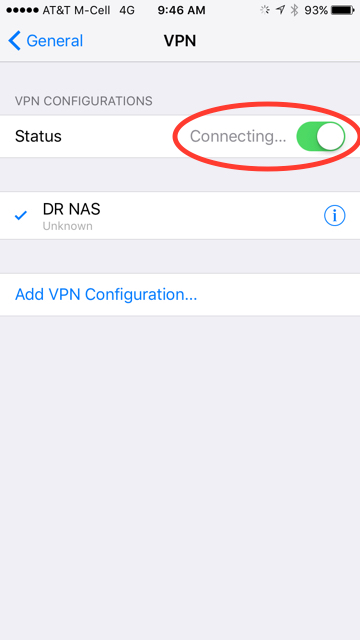
Once connected, you can back out to the home screen and you are connected to the company VPN.
0 Comments