This article will assist you in connecting your Chromebook to the company VPN:
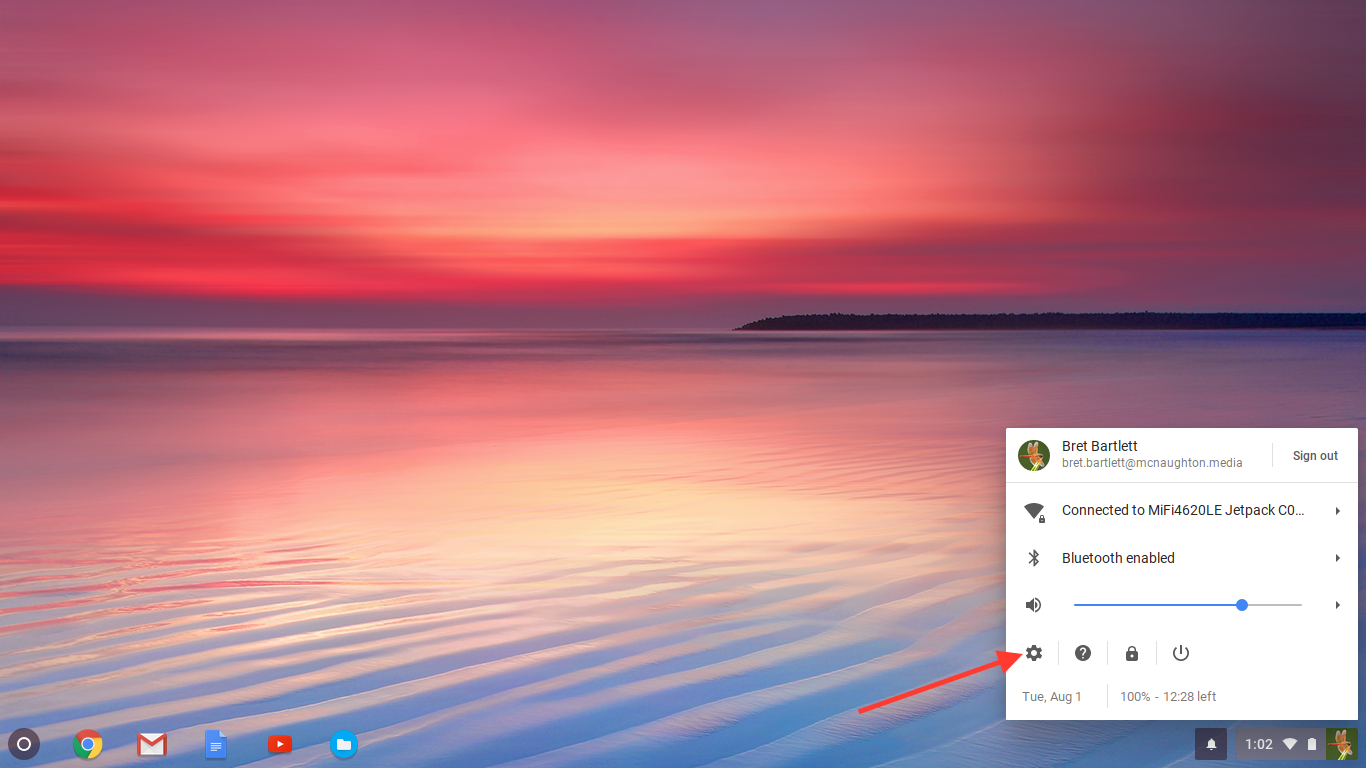
Click on your user icon in the lower right hand corner of the screen and then click the "settings" gear.
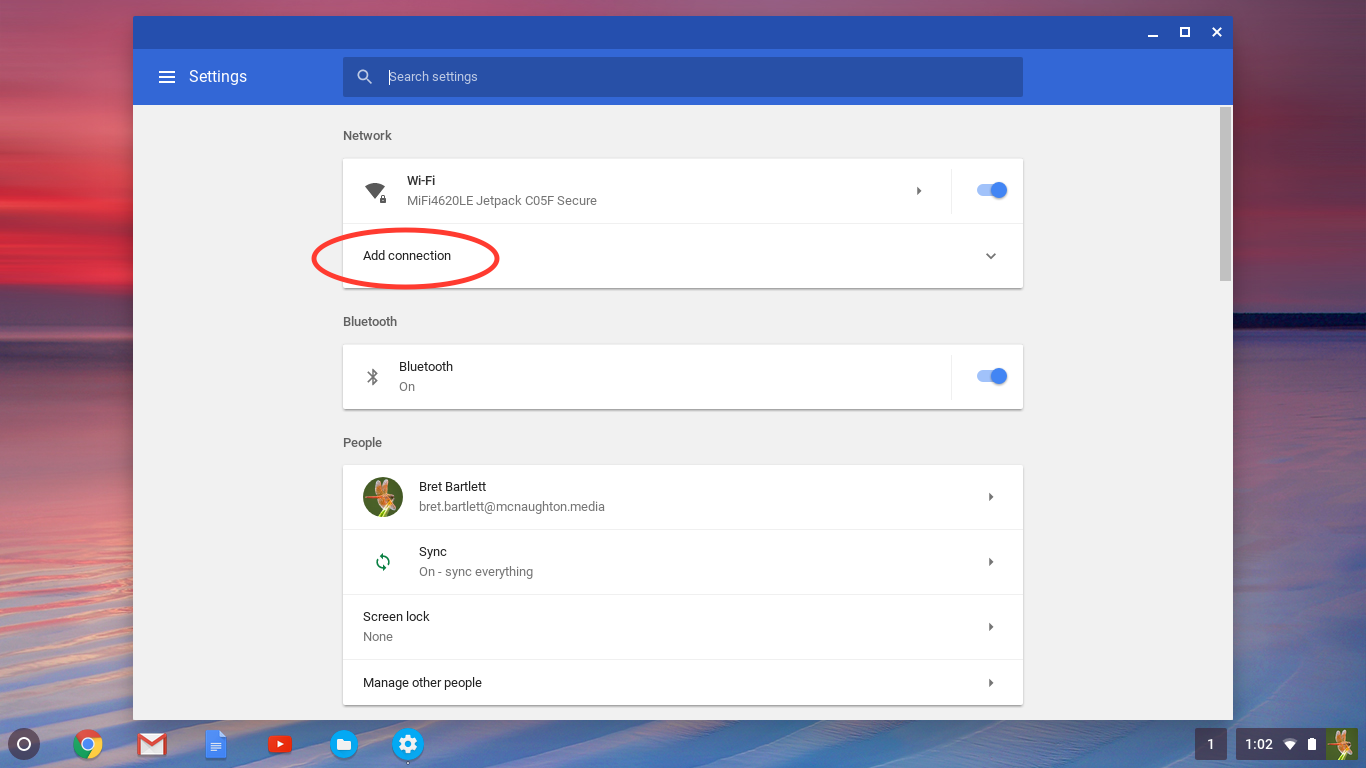
Click on "Add connection."
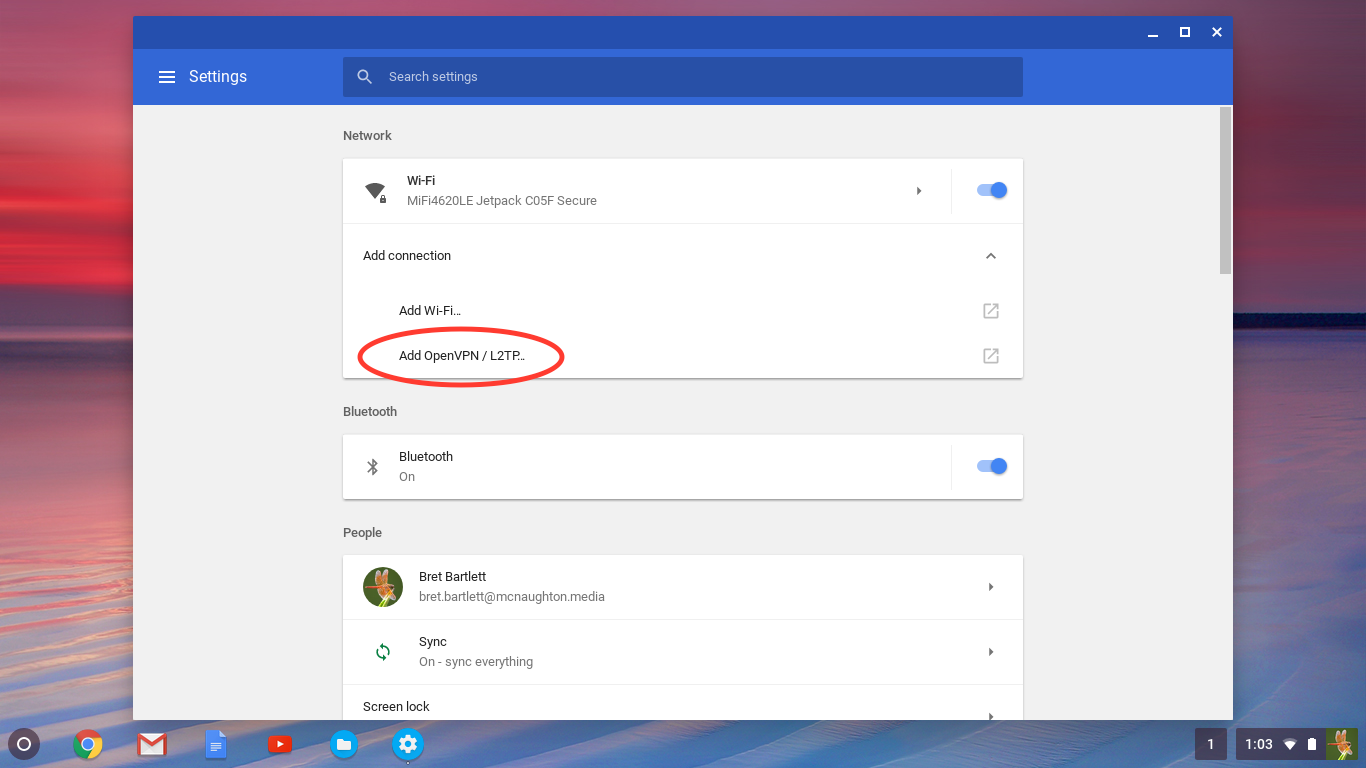
Select "Add OpenVPN / L2TP..."
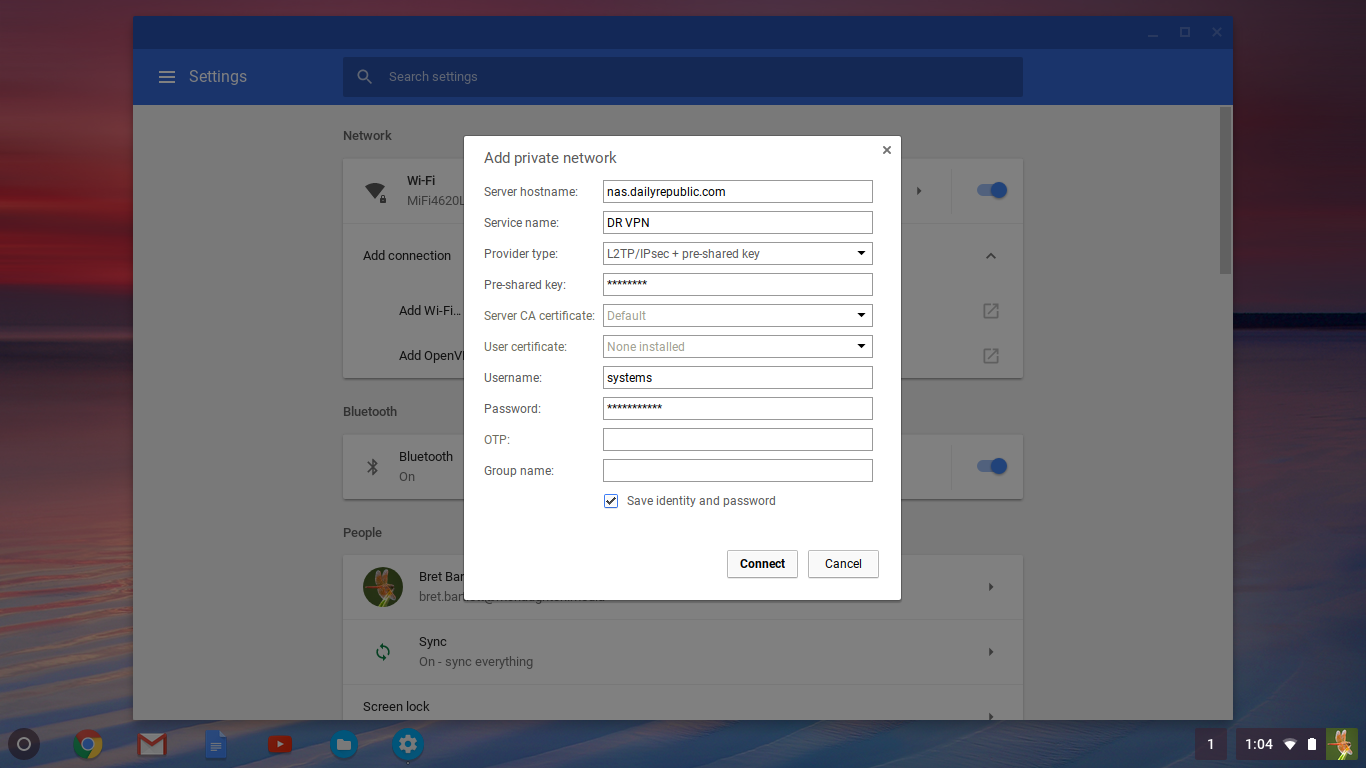
- Under "Server hostname" put nas.dailyrepublic.com. This might be nas.davisenterprise.com or nas.mtdemocrat.com depending on your site.
- Under "Service name" put a name you will recognize, like DR VPN or MD VPN.
- For "Provider type" you need to select "L2TP/IPsec + pre-shared key."
- Leave "Server CA certificate" and "User certificate" blank.
- Under "Username" place your NAS username. This follows the format of firstname.lastname.
- Under "Password" place your NAS password. If you do not know your NAS password, please contact the Systems Department to have your password reset. You can put in a request for this at help@mcnaughton.media.
- Check the "Save identity and password" box and click "Connect."
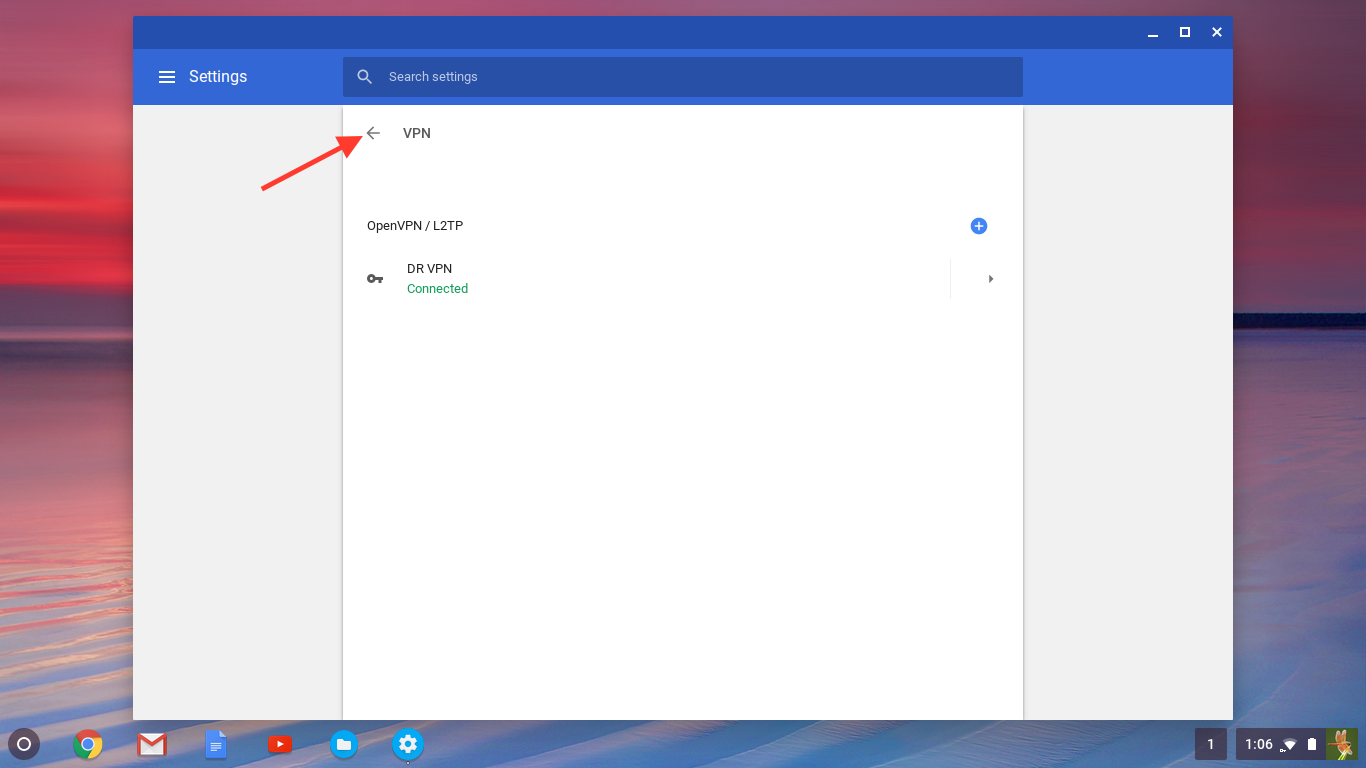
After a few seconds, you should see the word "Connected" under the new VPN you just created. Once you see this, you can hit the back arrow to go back to back out of the VPN settings menu. You can then close the "Settings" window to get back out to the desktop.
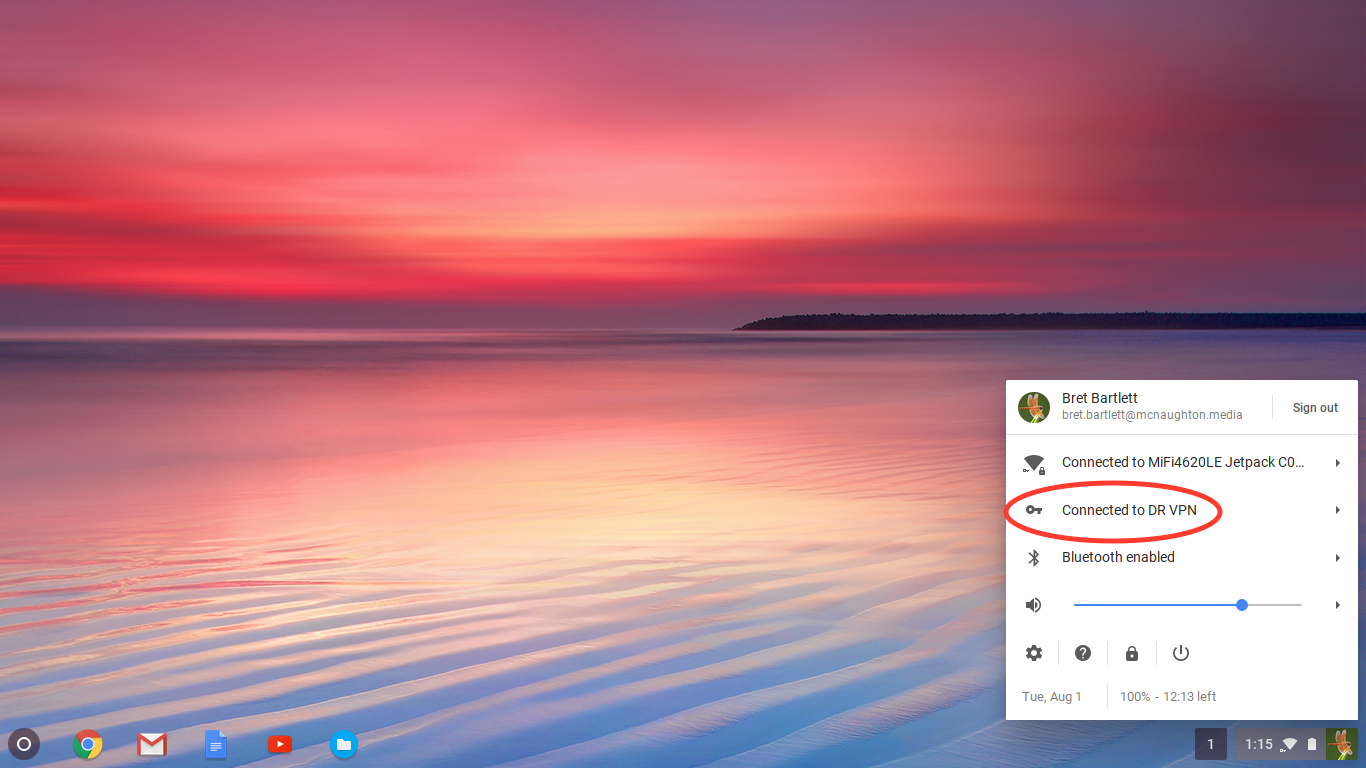
You are connected to the company VPN. You can go back to your user icon in the lower right hand corner of the screen to check the status of the VPN, or connect / disconnect as needed.
0 Comments