In this example, we’re going to learn how to schedule an event that happens on the third Thursday of each month.
First move the mouse to the top of your wordpress screen to Events. Once your cursor hovers over Events, a drop down tab will open and you’ll see options for View Calendar, Add Event, Edit Event, Import, etc. Select Add Event.
This is the screen to add your event:
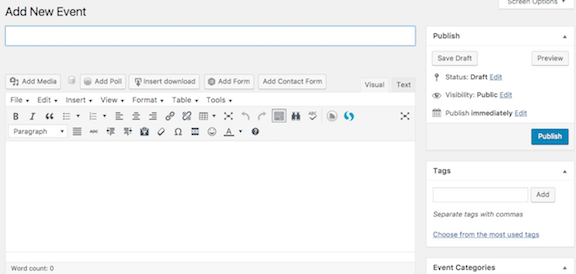
Add the event name in the headline bar.
Next add the event description in the body field.
Now it’s time to schedule your event. This is the screen you’ll see:
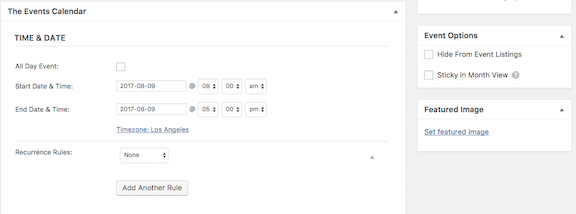
First enter the day of the event and the start time.
Second enter the same day and the end time.
If the events recurs more than once whether it’s weekly, monthly or in our case every third Thursday of the month, click the drop down bar that says None and scheduling options will appear.
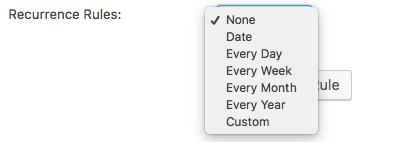
You have a variety of options. For our type of meeting, we’ll choose Custom.
Here’s the next screen:
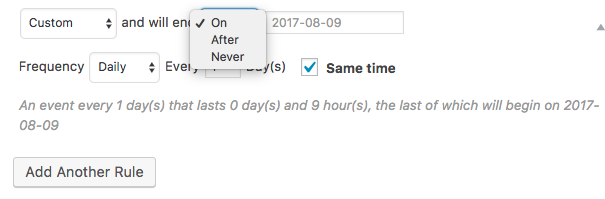
Here you can choose when your event ends either on a particular day, after a particular day or never. Be careful using never because the event calendar will keep scheduling events years in the future and there’s nothing worse for a user than going to an out of date calendar and getting excited about an event that stopped happening a year ago . It’s probably a good idea to revisit events after a year or two so try not to schedule them futher out.
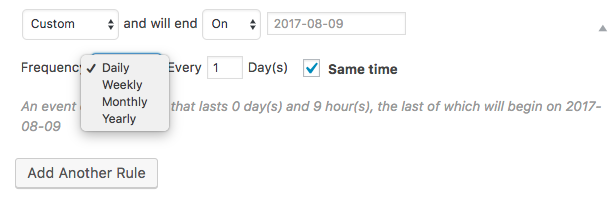
Next choose the frequency. Our event is occurring every month so choose monthly.
If your event happens every 2 months, make that change in the Every box by switching 1 to 2. In our case we’re keeping it to every month.
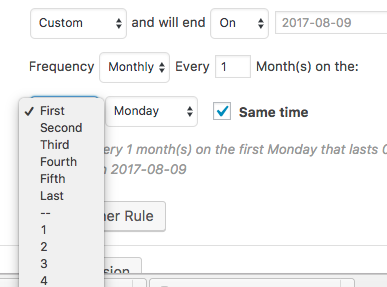
Now select which week of the month the event will occur. In our case, we’ll pick the Third.
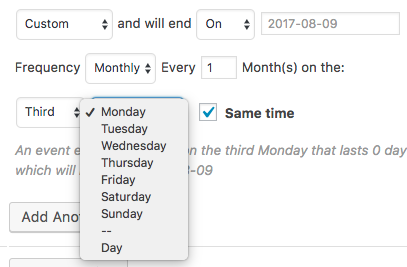
Now choose which day in the third week. For our meeting we’ll select Thursday.
As you may have noticed, the event calendar follows along as you scheduled your event and in gray italics, it explains the choices you’ve made. This is an easy way to tell if you’ve scheduled your event properly. In the end, always read over the example of what you’ve scheduled just to confirm you’ve scheduled it properly.

This is our event. (For the purposes of showing you how to schedule something on the third Thursday of every week, I didn’t adjust the end date of the event a year or two out like I suggested hence why it’s ending is on the same day it’s schedule to start 2017-08-09.
You can add exclusions to scheduled events if there are particular days or months when meetings go dark. To do so, click exclusions.
0 Comments