This document will assist you in adding your @mcnaughton.media Gmail account to your Mac Mail desktop client. This document applies to new Mac OS X installs (OS 10.7 and later.) In order to complete the steps in this document, you will need to know your new @mcnaughton.media e-mail address, which has the format of first.last@mcnaughton.media. You will also need to know your password for this account. If you don't have either of those things before beginning, please submit a request at help@mcnaughton.media to obtain your new account information.
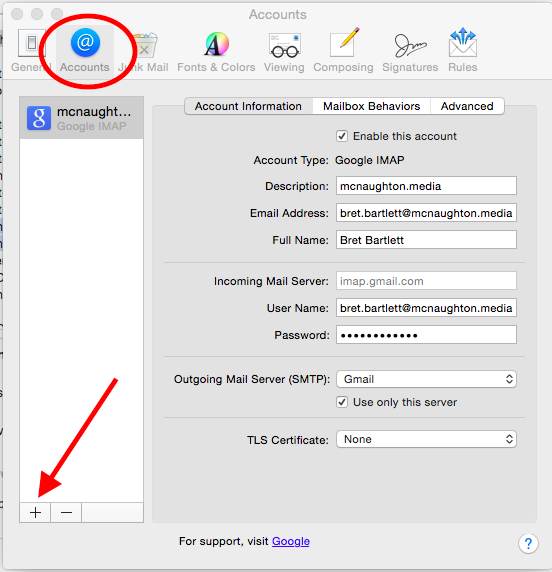
Open your mail preferences, found under the Mail | Preferences menu as shown below and select the "Accounts" tab. Click on the + symbol to add an account.
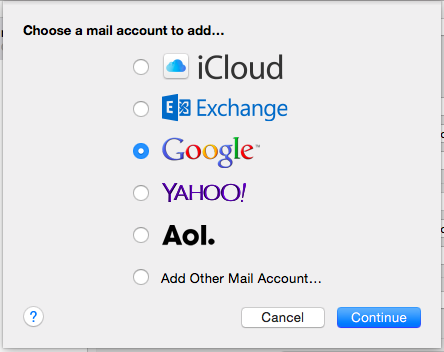
Select "Google" and click Continue:
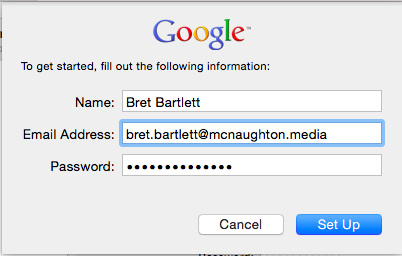
Enter your full name, your @mcnaughton.media e-mail address (first.last@mcnaughton.media), and your password.
Your account will then be setup automatically by Mac Mail.
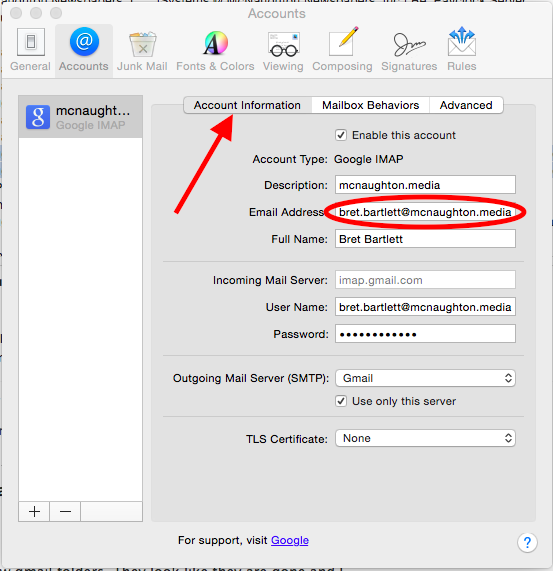
Once your account is setup, go back to the Mail | Preferences menu and select the "Accounts" tab again. Select your new Gmail account and click on the Account Information tab. In "Email Address" box, change the address from your @mcnaughton.media address back to your actual e-mail address that contains your site name (ie. davisenterprise.net, dailyrepublic.net, mtdemocrat.net.) Be sure NOT to change your "User Name" in the area directly below your e-mail address and full name. The user name must remain as your @mcnaughton.media account.
The final step in migrating your mail involves telling Gmail to send as your @mtdemocrat.net, @davisenterprise.net, or @dailyrepublic.net e-mail address. In order to do this you need to log into your Gmail account at http://mail.mcnaughton.media.
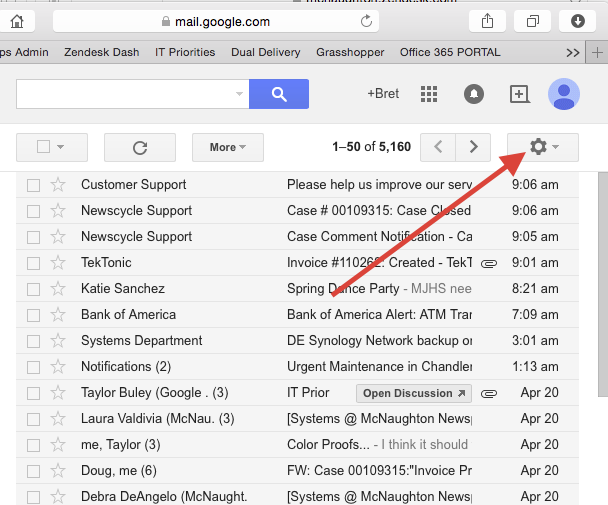
Next you will need to select the gear icon in the upper right hand corner and click on "Settings."
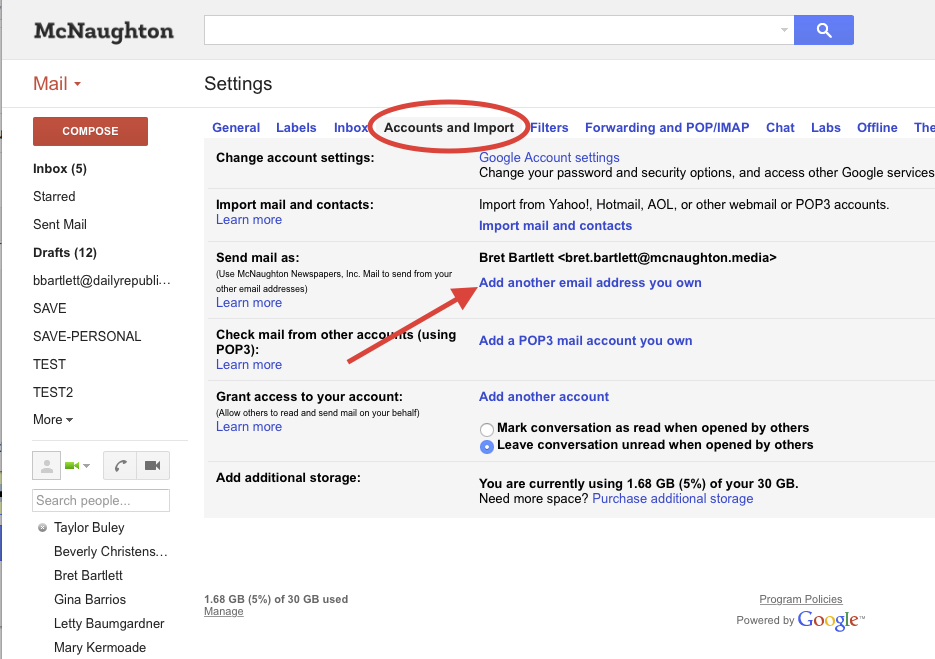
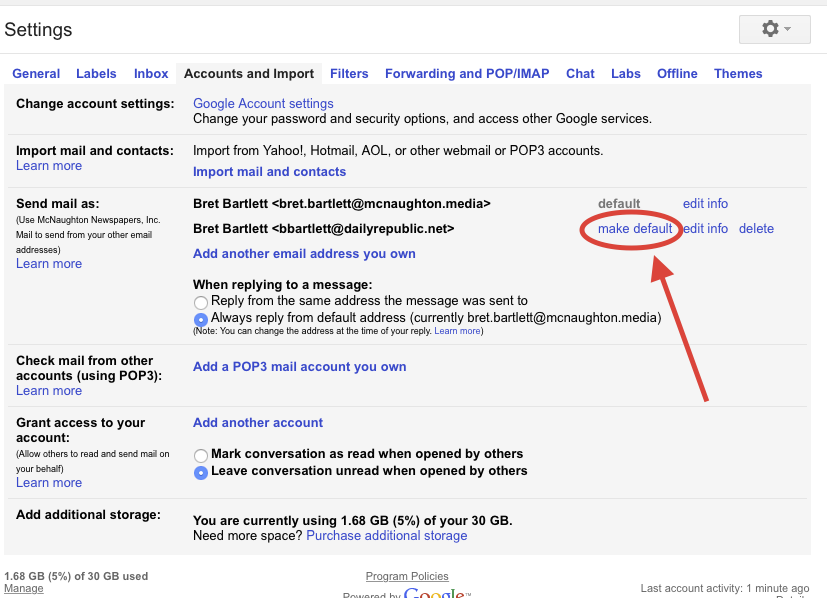
Then click on "Accounts and Import" as shown below, and click on "Add another e-mail address you own."
Then add your site specific e-mail address here (i.e. @mtdemocrat.net, @davisenterprise.net, @dailyrepublic.net)
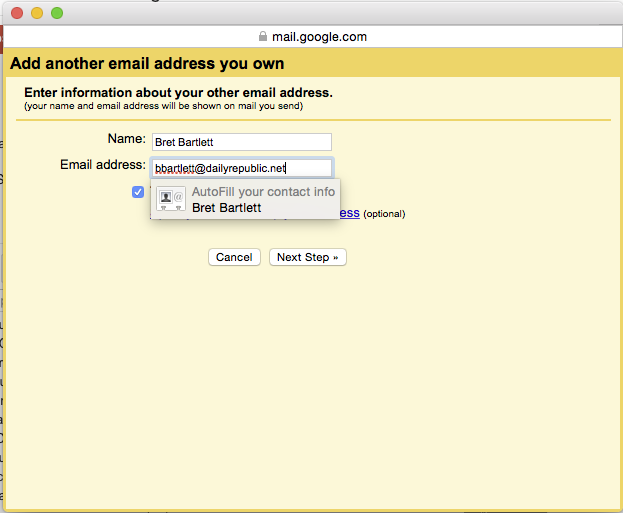
Once that it done, click "Next Step" and select "make default." Make sure that the "Always reply from default address" button is marked in the area directly below where you just added your e-mail address.
When you have completed these steps, you may log out of Gmail and will be ready to begin receiving and sending mail directly from your new Gmail account within Mac Mail. You may migrate e-mail and folders from your old Communigate mail account to your new @mcnaughton.media Google account by dragging them from one account to the other.
Shawn and Letty: I have already setup the forwarders in Communigate. You no longer have to do that part. The steps listed above are all that is needed to convert anyone who is left to Gmail.
0 Comments