Step 0: Find the order. If you just created a new Order and Line item and clicked "Save and add creatives" button skip to step 2B.
Step 1: Click on the Line Item to which you'd like to add creatives. If the campaign is currently "Delivering," pause the Line Item. If you are in the middle of creating a new order per these instructions then finish by adding a new Line Item to the order after which you can add these creatives.
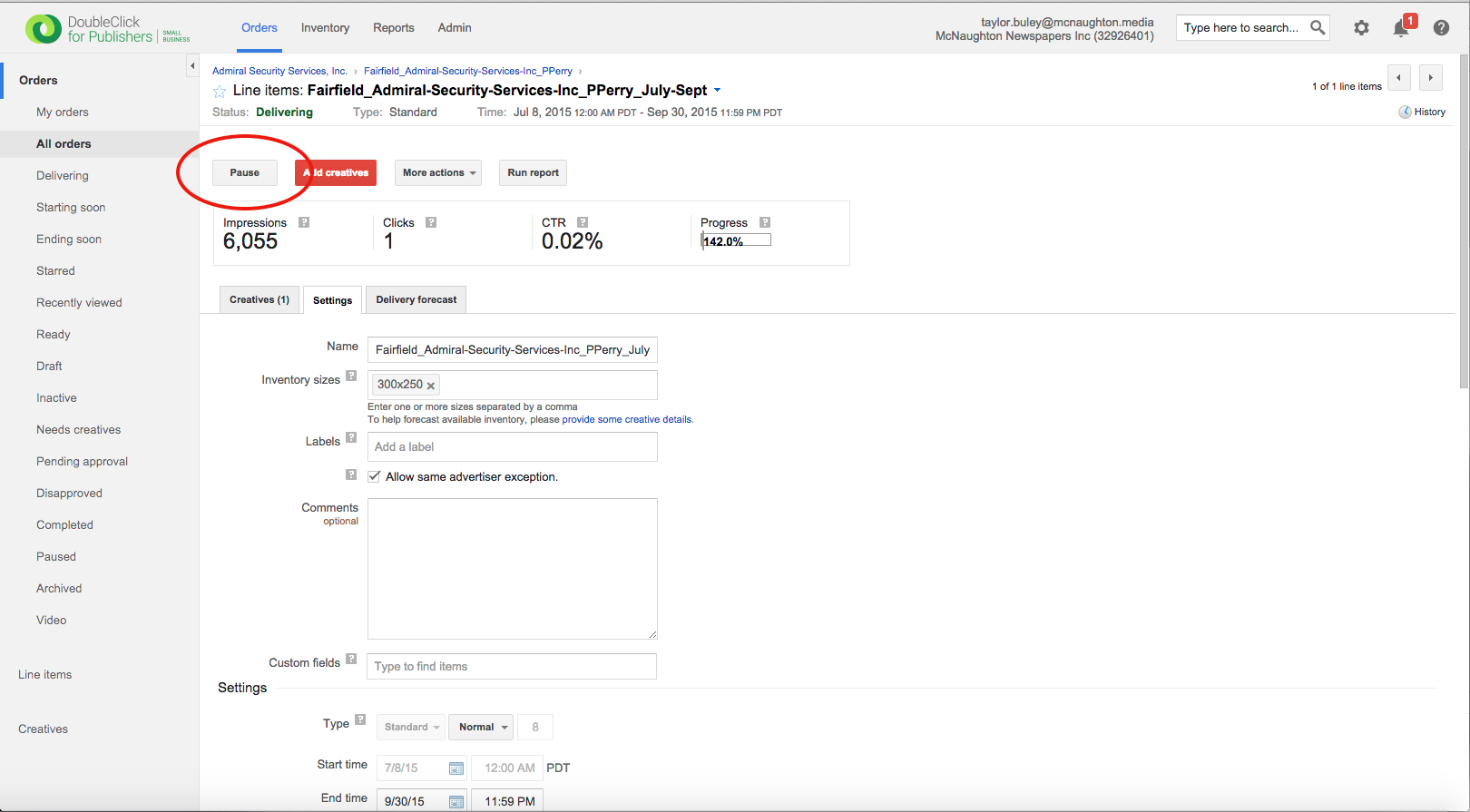
Step 2A: Click the red "Add Creatives" button.
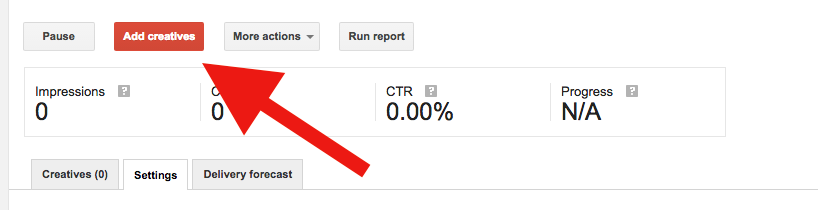
or
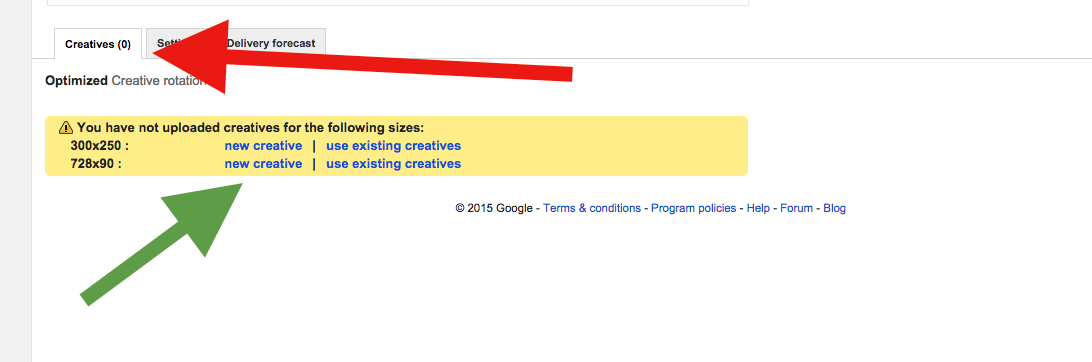
Step 2B: Click the "Creatives" tab and then an "New Creative" link
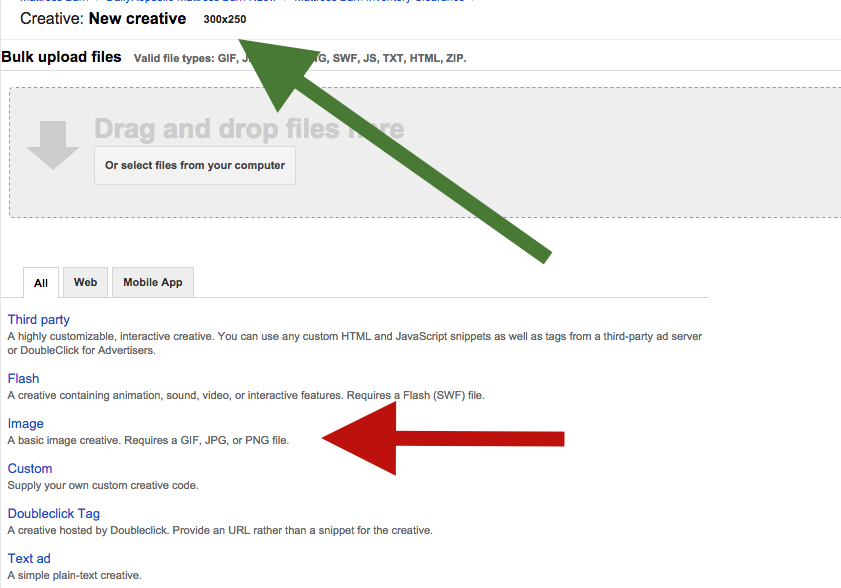
Step 3: Pick the creative type, which is "Image" for most cases that involve JPGs and PNGs.
If you used Step 2B, a creative size will be auto-populated. Else, you'll have to set the size in Step 4.
Step 4: Upload The Creative (Or Copy/Paste Code If You're Using the "Third Party" Type)
Use the "Image files" field to find the image on your computer and upload it for attachment. The file should be the same size as your creative calls for, and not stretched or oversized.

Click "Use a remote image" if this file already exists on a public server somewhere.

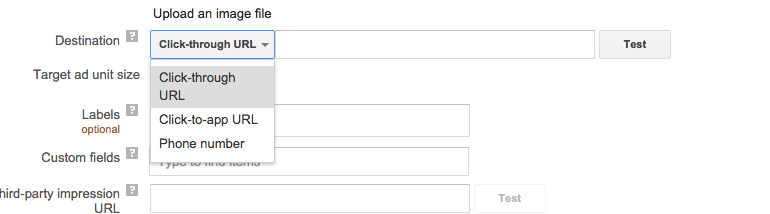
Step 5: Specify The Ad Destination
Every ad needs to "do something." The destination should be either a URL to which it clicks, or a special link such as "mailto:email@org.com." For telephone numbers, use "Phone number" and type the full number with a preceeding 1 for good measure: "15307183339"
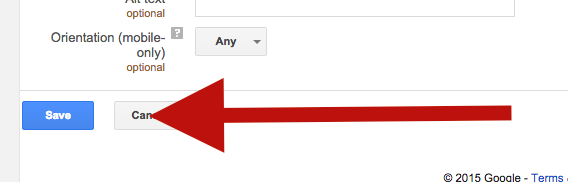
Step 6: Save The Creative
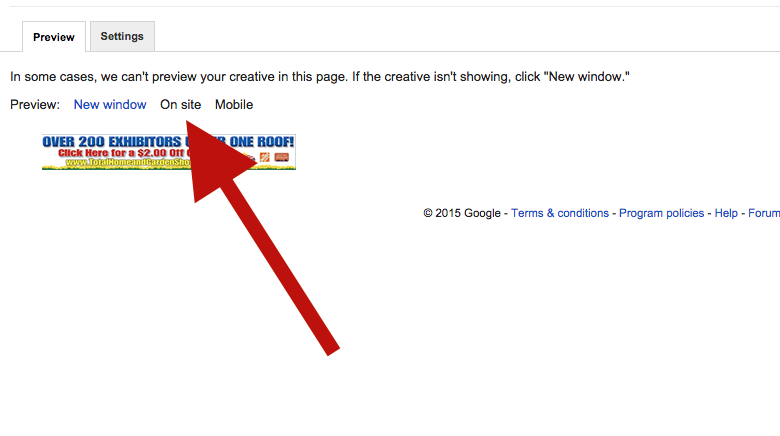
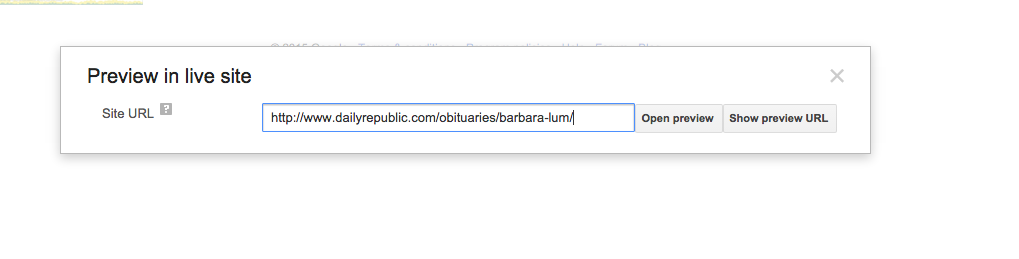
Step 7: Preview The Creative
By going back to the Creatives tab of the line item, and clicking into view a single creative, an option exists to preview the creative. Type the URL on which to preview (an article page will always work; the homepage does not have a 300x250 on it).
Step 8: If the campaign was previously "Delivering," resume the Line Item.
0 Comments