Example Preview URL (working as of 10/26/15)
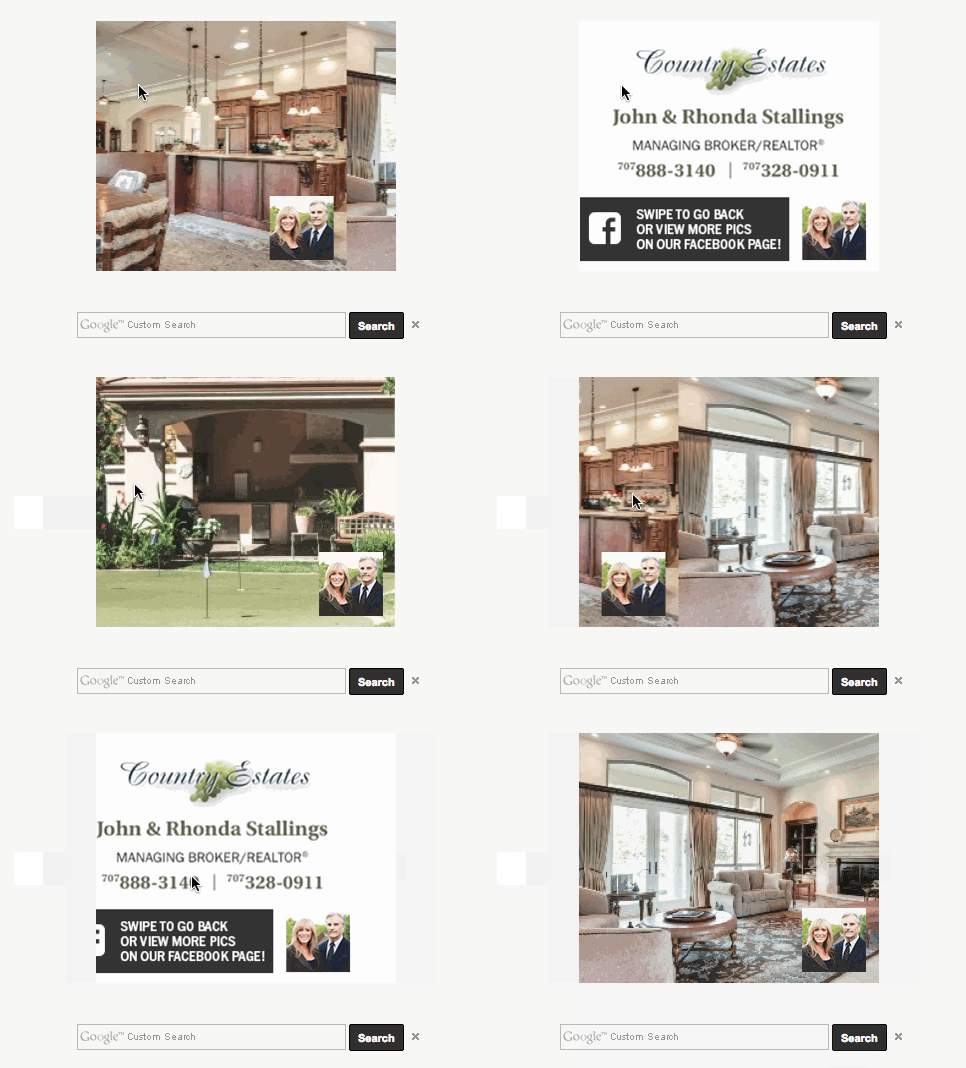
Step 0: Navigate to the Line Item to which you'd like to add the creatives. If necessary, create a new Order and Line Item along with it.
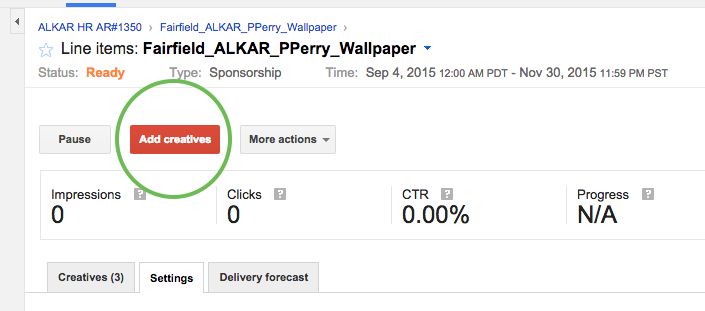
Step 1: Click the "Add Creatives" button
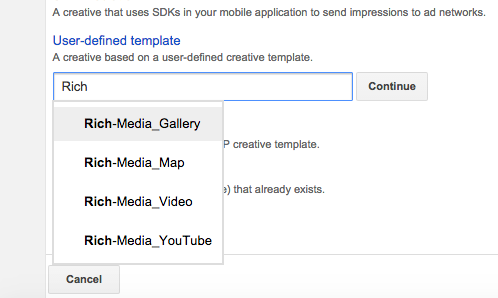
Step 2: On the "Creative: New creative" screen, scroll down and click "User defined templates" then type "Rich-Media_Gallery"
Step 3: Create your Gallery.
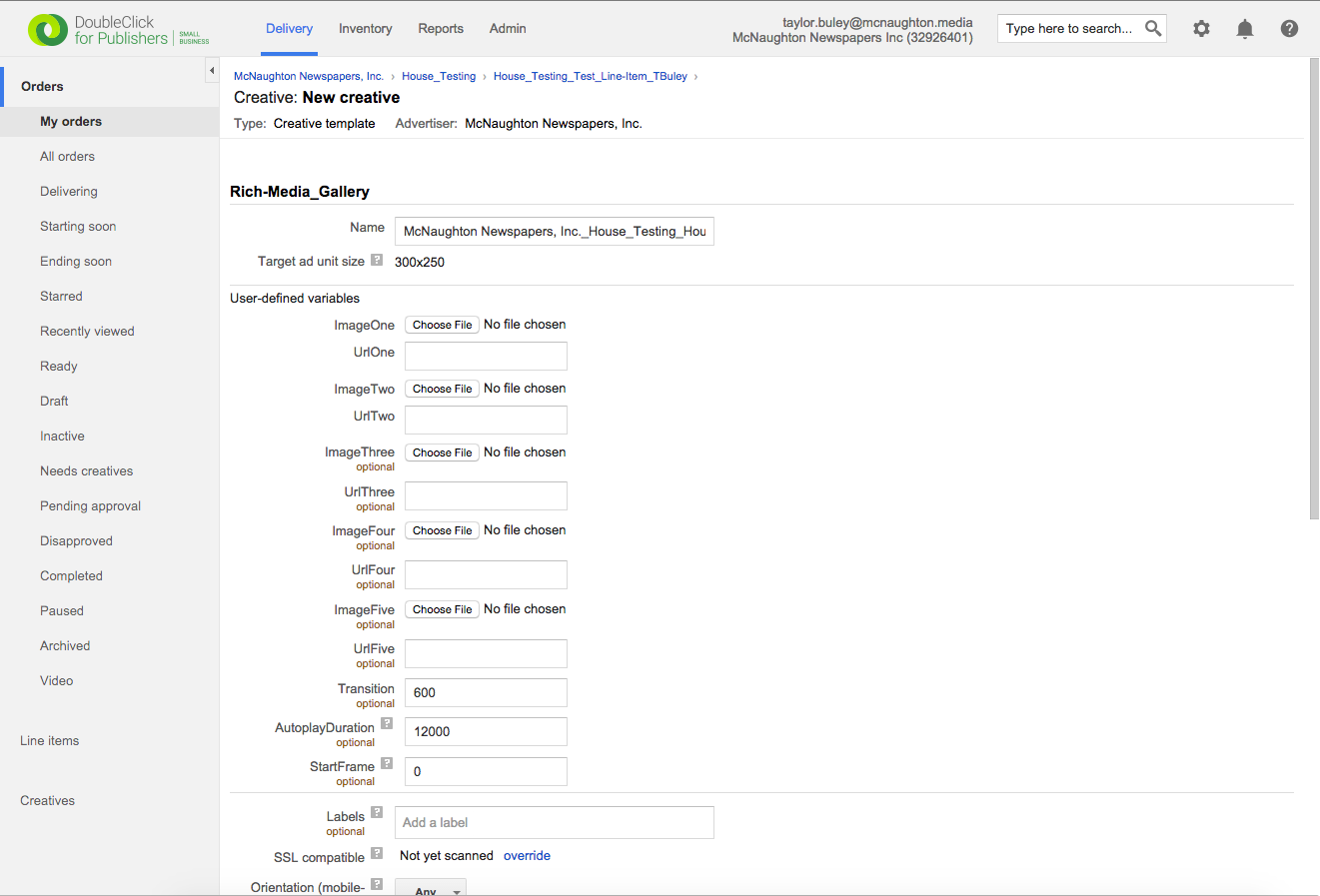
Each slide needs an image file (ImageOne, ImageTwo, etc.) and a click destination (UrlOne, UrlTwo, etc.). "StartFrame" determines on what slide the Gallery will start. "Transition" is the time between slides and "AutoPlayDuration" is the length of all slides together.
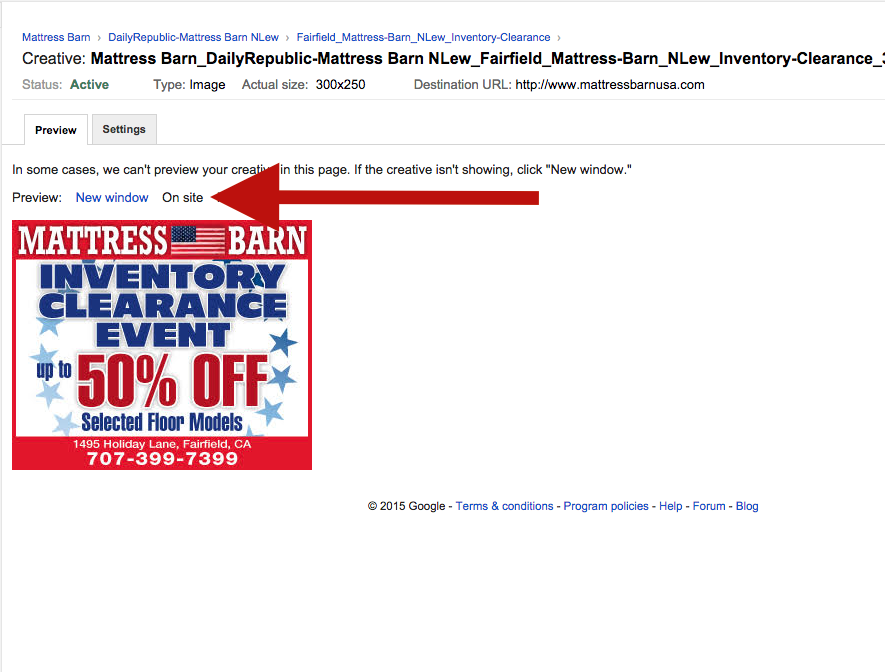
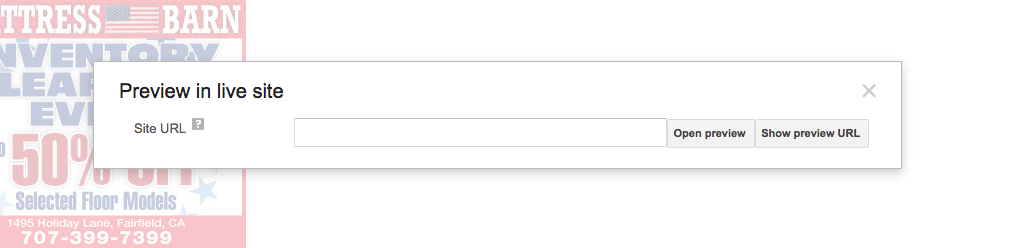
Step 4: Preview the creative using the Click the "Preview: On site" Link. Then type The URL On Which To Preview (Hint: Use An Article) And Click "Show Preview URL" to copy to your clipboard.
0 Comments