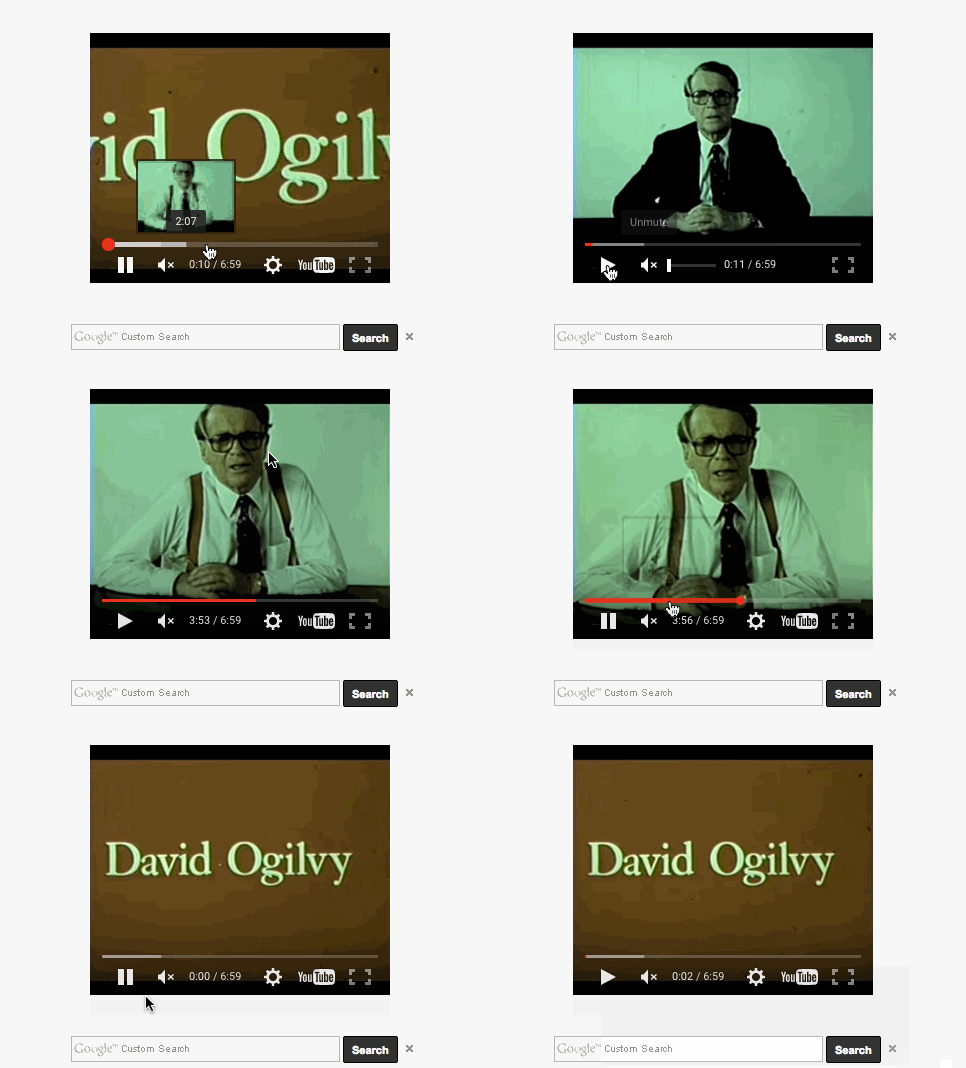
Note: YouTube players are exactly as they come from YouTube and do not have a click destination. If a destination will improve results this should be implemented using a clickable video creative.
Example Preview URL (working as of 10/26/15)
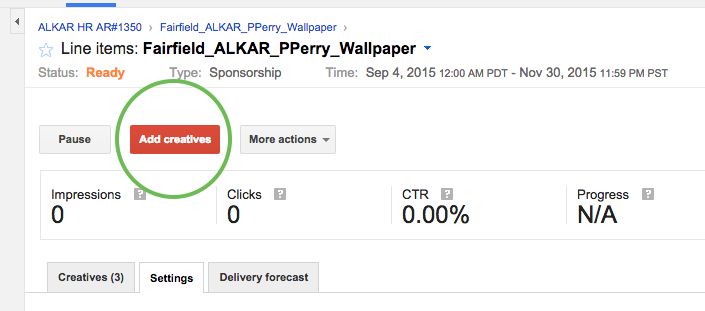
Step 0: Navigate to the Line Item to which you'd like to add the creatives. Add support for the 300x250 ad size.
Step 1: Click the "Add Creatives" button.
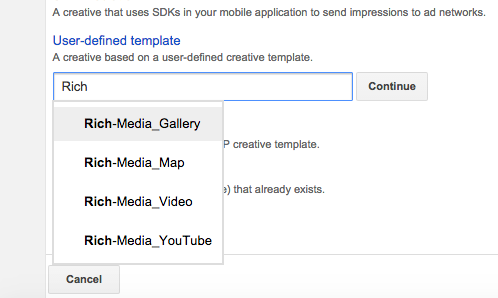
Step 2: On the "Creative: New creative" screen, scroll down and click "User defined templates" then type "Rich-Media_YouTube_Player"
Step 3: Create your YouTube video using a 300x250 creative size.
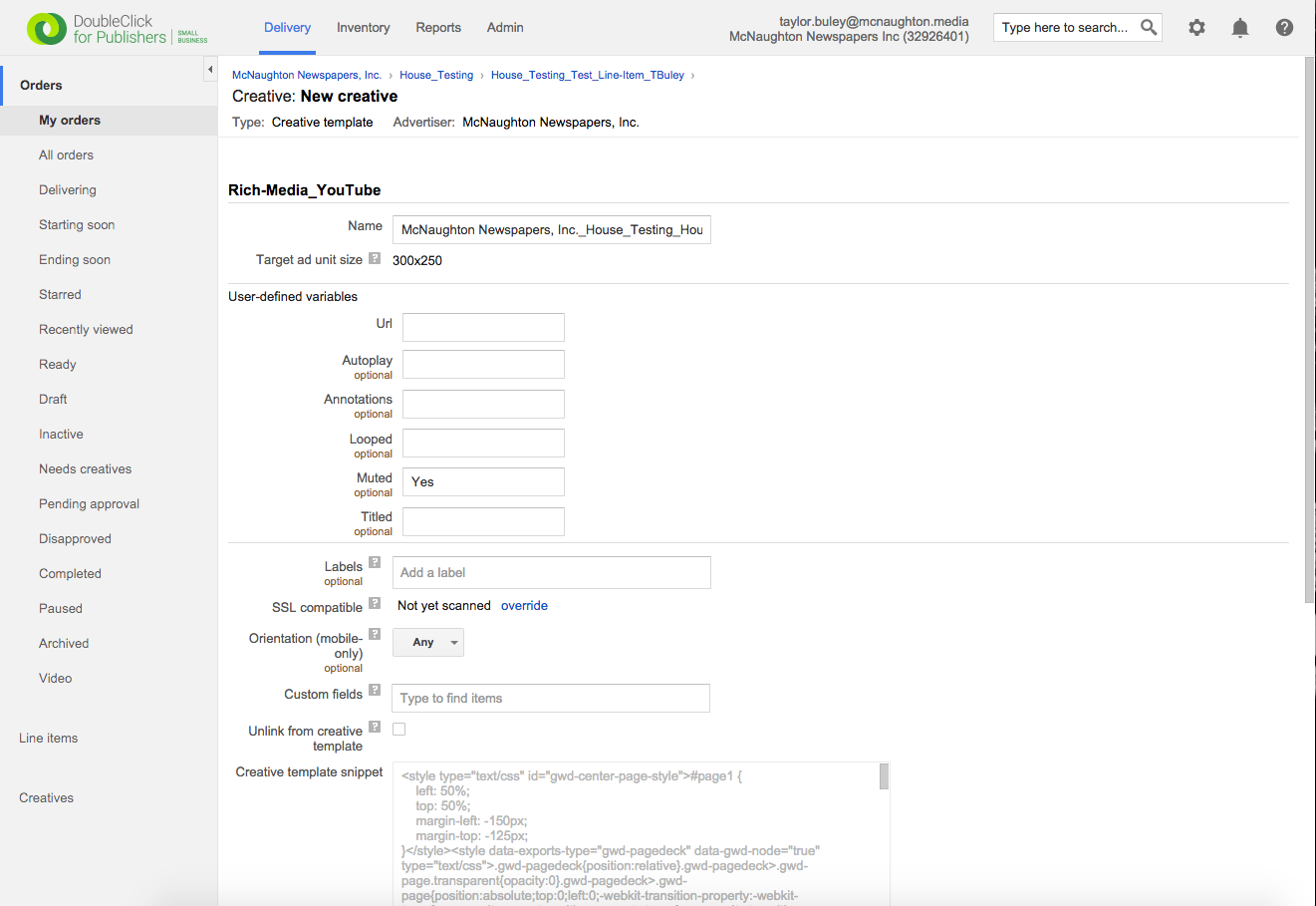
"Url" is the URL for the YouTube video you'd like to play. "Autoplay," when set to anything, controls whether the video plays itself on load. "Annotations," when set to anything, adds support for YouTube videoplayer annotations. "Looped," when set to "looped", restarts the video on completion. "Muted," when set to "muted", mutes the video. "Title," when set to anything, shows the YouTube video title in the YouTube player.
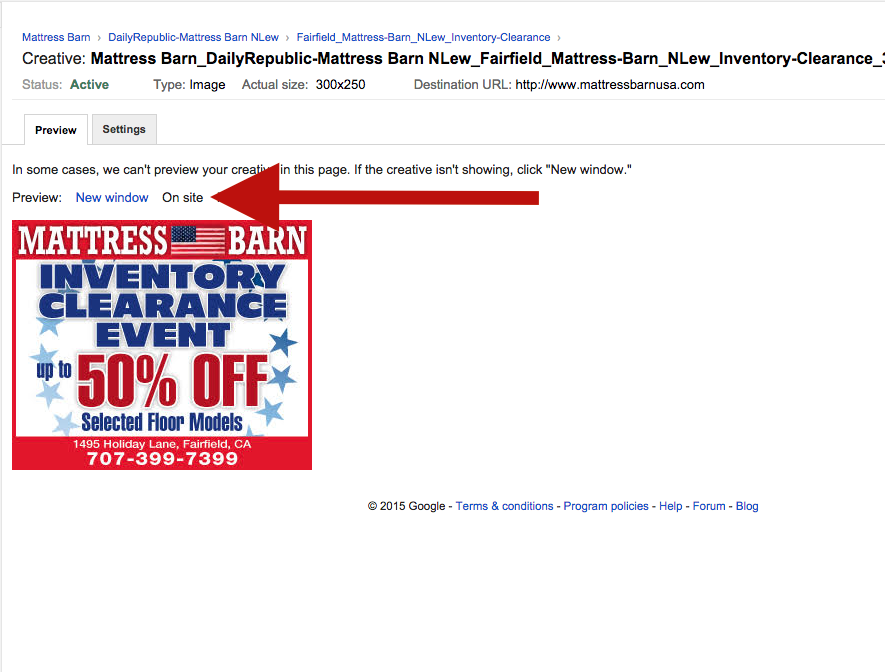
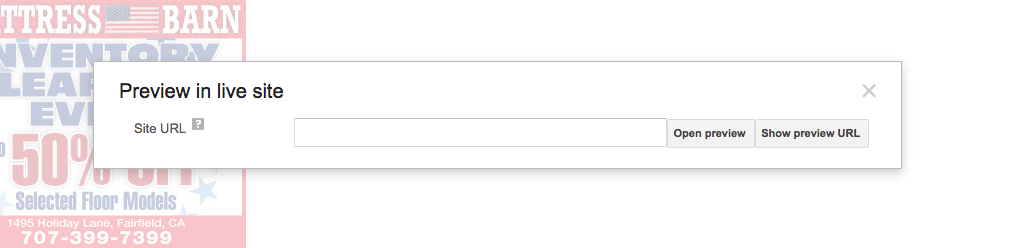
Step 4: Preview the creative using the Click the "Preview: On site" Link. Then type The URL On Which To Preview (Hint: Use An Article) And Click "Show Preview URL" to copy to your clipboard.
0 Comments