Note: "MP4", "OGV" and "WEBM" are the names of video codec formats that are used in HTML5 video. For cross-browser support, you'll want to have the video hosted in all three formats. We cannot serve or transcode these videos at this time. Thus, the HTML5 medium is not for most customers and the YouTube creative template is highly advised instead.
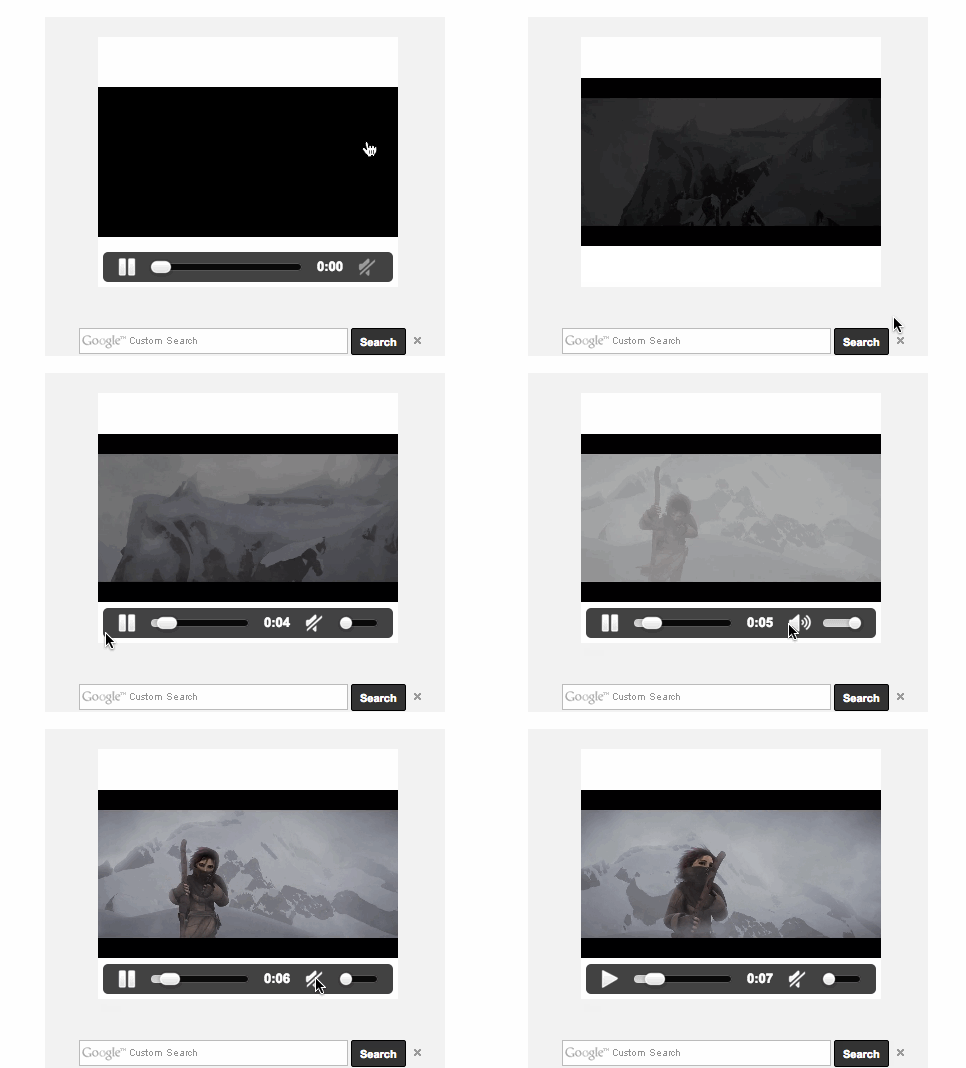
Example Preview URL (working as of 10/26/15)
Step 0: Navigate to the Line Item to which you'd like to add the creatives.
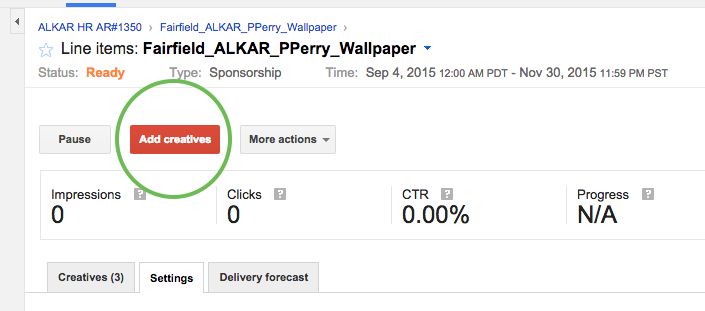
Step 1: Click the "Add Creatives" button.
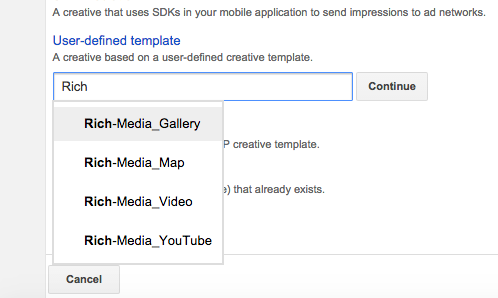
Step 2: On the "Creative: New creative" screen, scroll down and click "User defined templates" then type "Rich-Media_Video"
Step 3: Create Your HTML5 Video
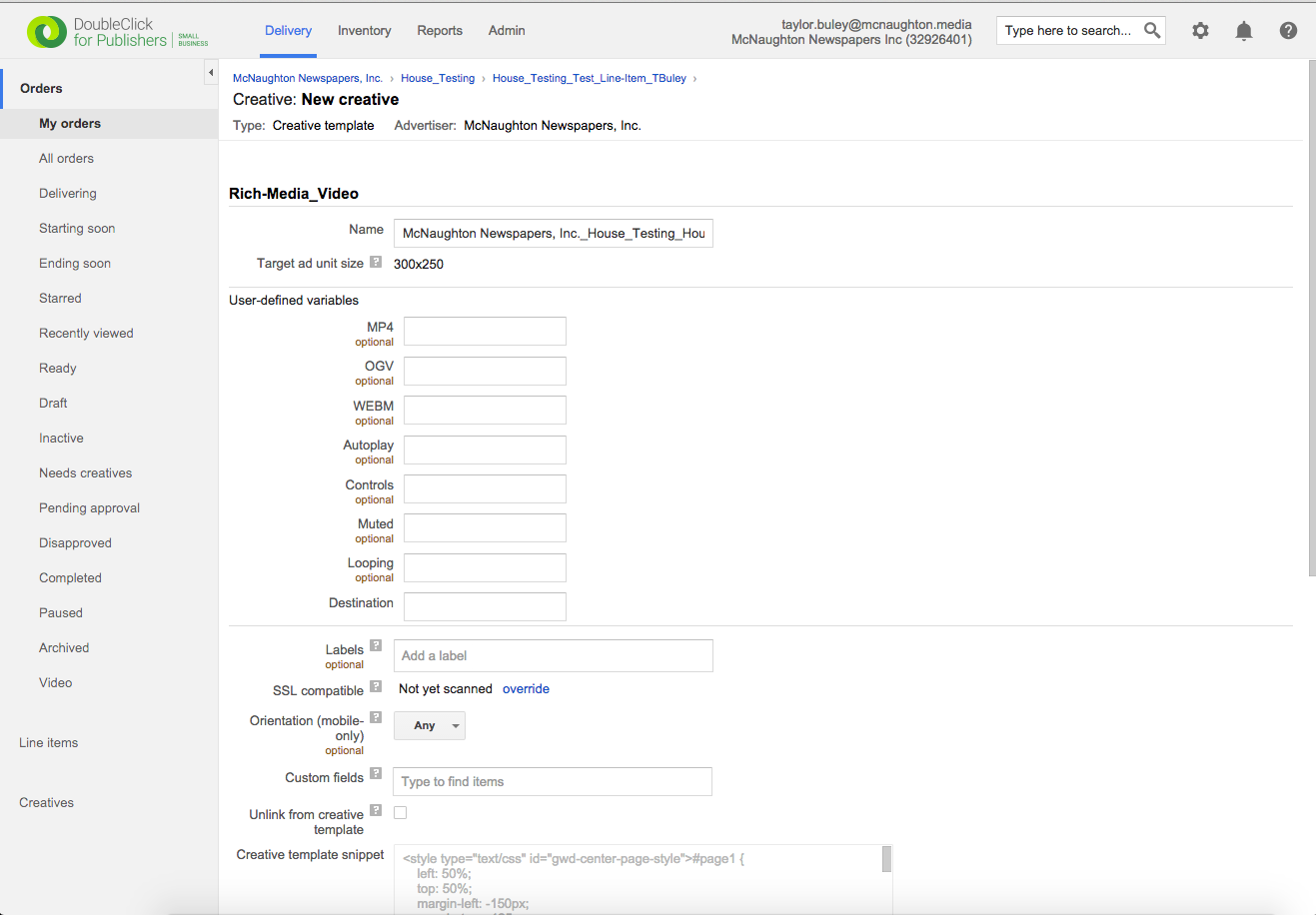
"Autoplay," when set, starts the video automatically. "Controls," when set, enables the HTML5 video controls to be used. "Muted," when set, mutes the video by default. "Looping," when set, controls whether or not the videoplay loops on completion. "Destination" is the URL to which the video will click (when not clicked on the controls).
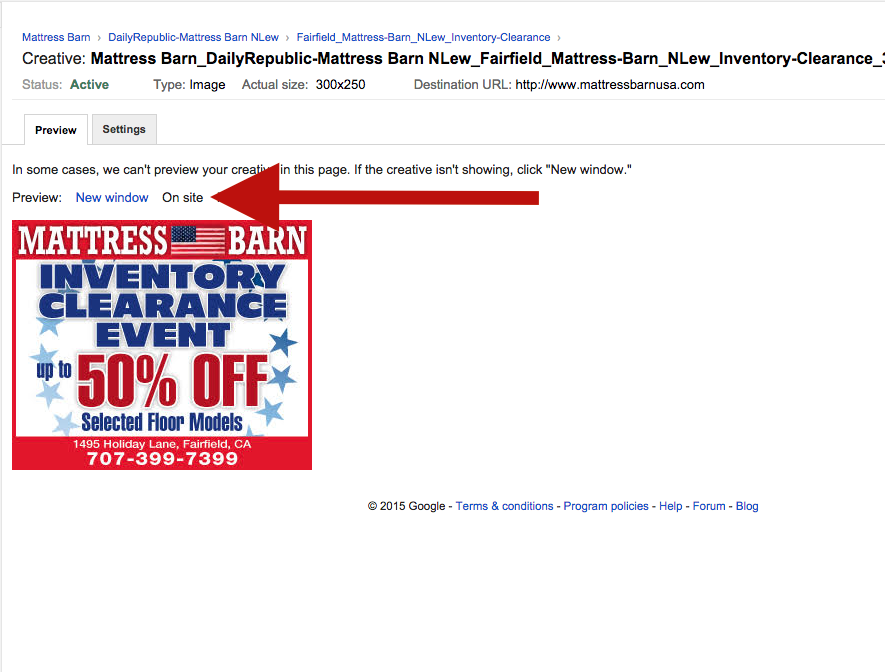
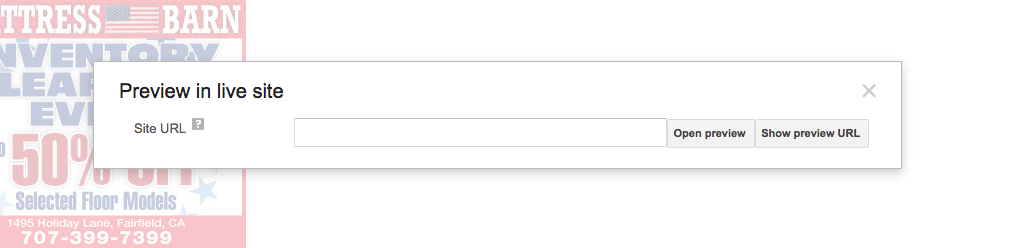
Step 4: Preview the creative using the Click the "Preview: On site" Link. Then type The URL On Which To Preview (Hint: Use An Article) And Click "Show Preview URL" to copy to your clipboard.
0 Comments