From time to time we need to take down a creative but not alter the campaign. When there are multiple creatives this is just a matter of taking the steps below. But note that if we take down a creative and there is only one creative for that size on the order, it will automatically pause the until we re-enable it manually since there are no valid ads to display.
Step 0: Find the Line Item on which the creative is attached
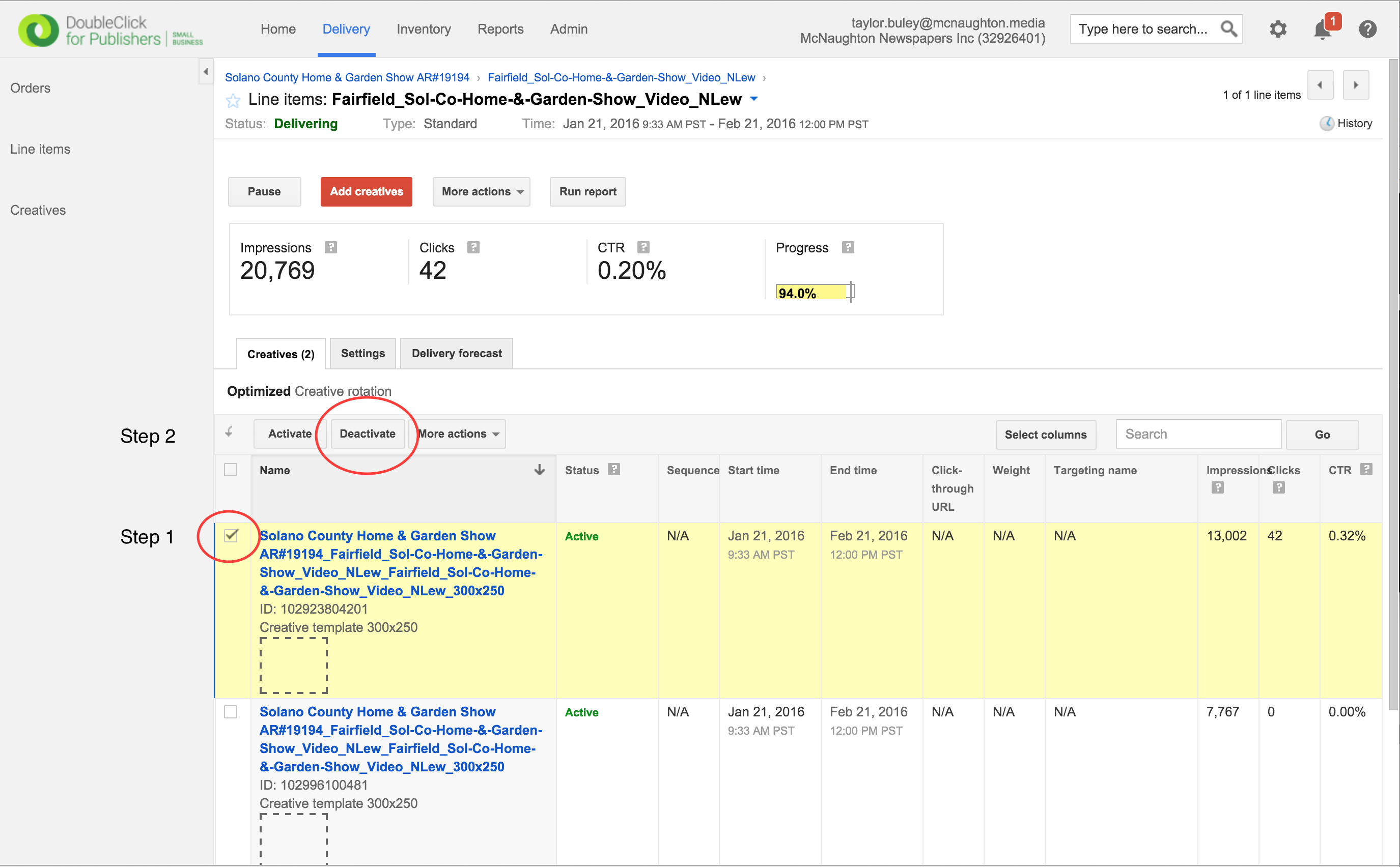
Step 1: Check the box next to the creative you'd like to take down
Step 2A: Click the "Deactivate" button to disable the ad until further notice but leave it attached to the Line Item. The "Activate" button reverses this step.
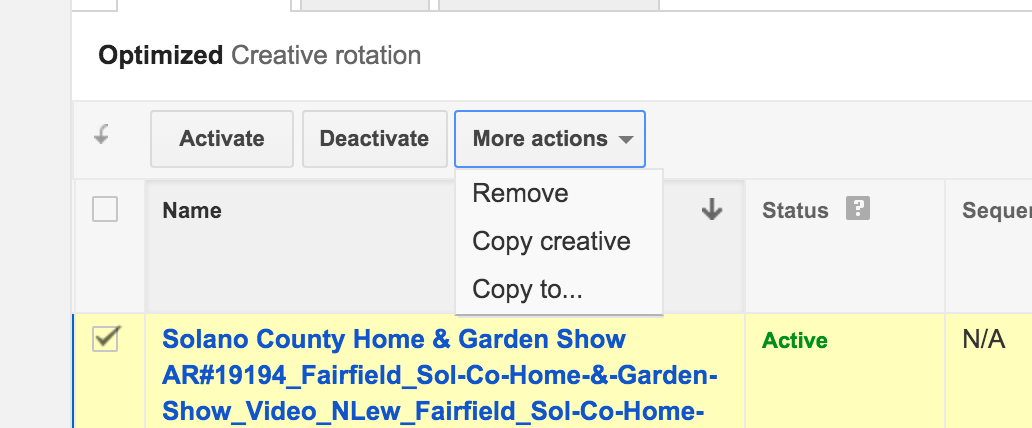
Step 2B: To remove the creative entirely, click "More actions" button then choose "Remove" - the creative must be added again manually if this step needs to be reversed. Step 2A is not required.
0 Comments