Windows 10:
1.) Copy the "SBS Financials MCN - Live" shortcut from the volume //10.1.10.200/DR/Systems Software/SBS Shortcut/ to the desktop.
2.) Double Click on the shortcut to connect to SBS
3.) Enter the username in the following form:
sbscloud/mcn.<first letter><last name>
The default password for new users is P@s****** (see Systems for full pass)
4.) Say yes to any security warnings and save password if possible.
Mac:
1.) Make sure the user has the latest version of Mac OS (10.13 or above)
2.) Download the latest version of Microsoft Remote Desktop 10 from the App store and run it. Remove any old versions of Remote Desktop.
3.) Copy the "SBS Financials MCN - Live" shortcut from the volume //10.1.10.200/DR/Systems Software/SBS Shortcut/ to the desktop.
4.) Drag the shortcut you just copied into the connection window of Microsoft Remote Desktop 10.
5.) Double click on the new connection you just created and enter the username in the following form:
sbscloud/mcn.<first letter><last name>
The default password for new users is P@s****** (see Systems for full pass)
6.) Say yes to any security warnings and save password if possible.
***** NOTE *****
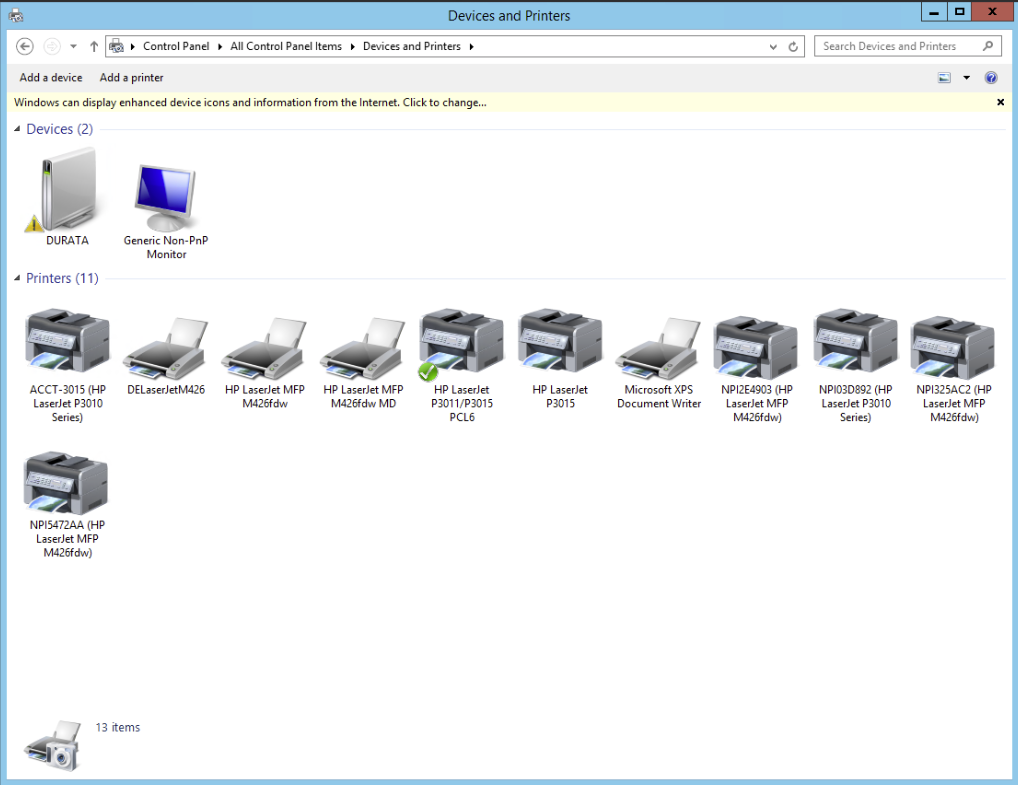
All printers MUST have these exact names in Windows "Devices and Printers" in order to work.
DR:
HP LaserJet MFP M426fdw
DE:
DELaserJetM426
MD:
HP LaserJet MFP M426fdw MD
Here is a screenshot of the old server and all the printers that were connected.
0 Comments