The following article will explain how to access files on the NAS at DR, DE or MD using a Chromebook. The addresses of each site are listed below, but DR will be used in this example.
Fairfield: https://nas.dailyrepublic.com:7076
Davis: https://nas.davisenterprise.com:7076
Placerville: https://nas.mtdemocrat.com:7076
Open the Chrome web browser and type the appropriate address for your site. We are using https://nas.dailyrepublic.com:7076 for this example:
You will be presented with a login page that looks like the screenshot below:
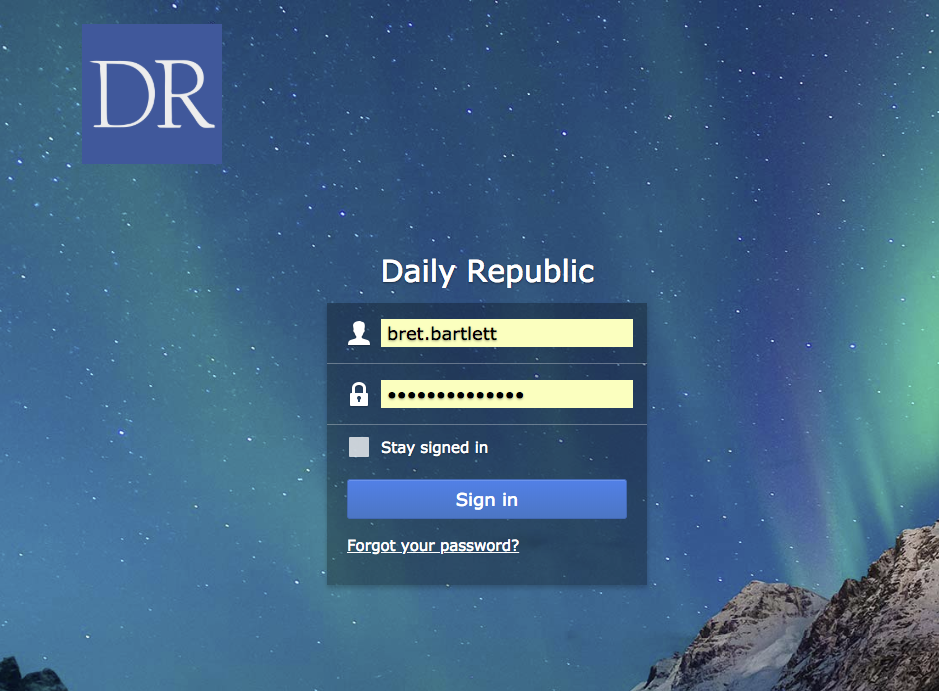
Use your NAS username and password to log into the NAS web interface.
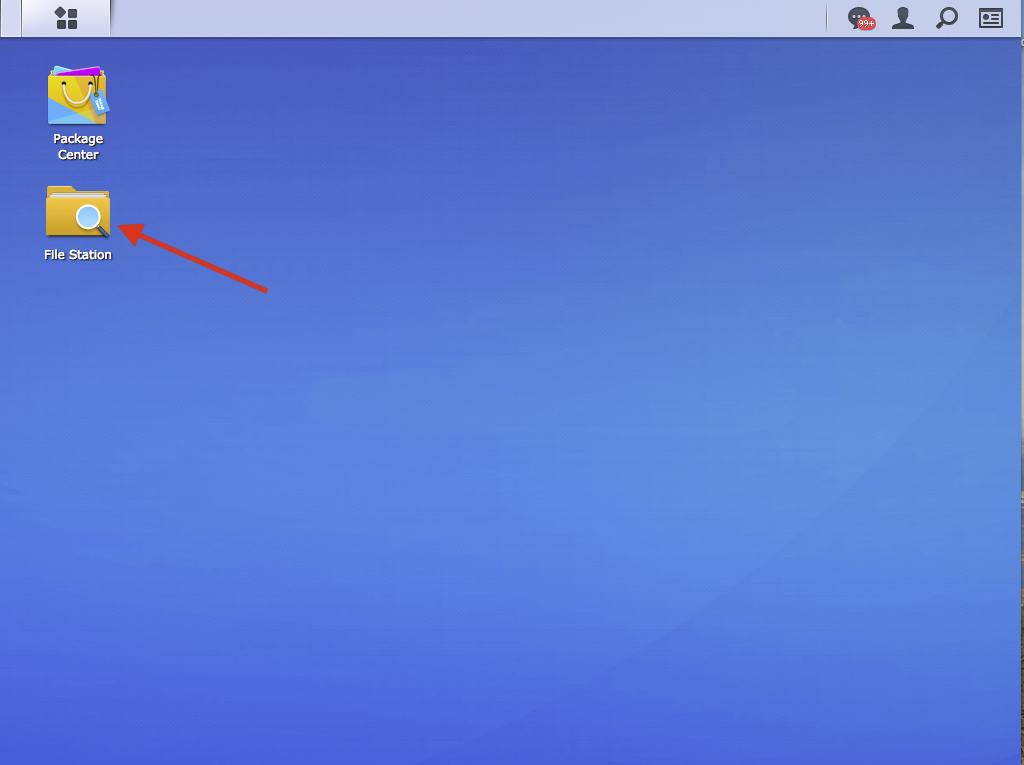
Once logged in, you will be presented with a screen like the one below. Double click on the File Station icon to open File Station and view the files on the server.
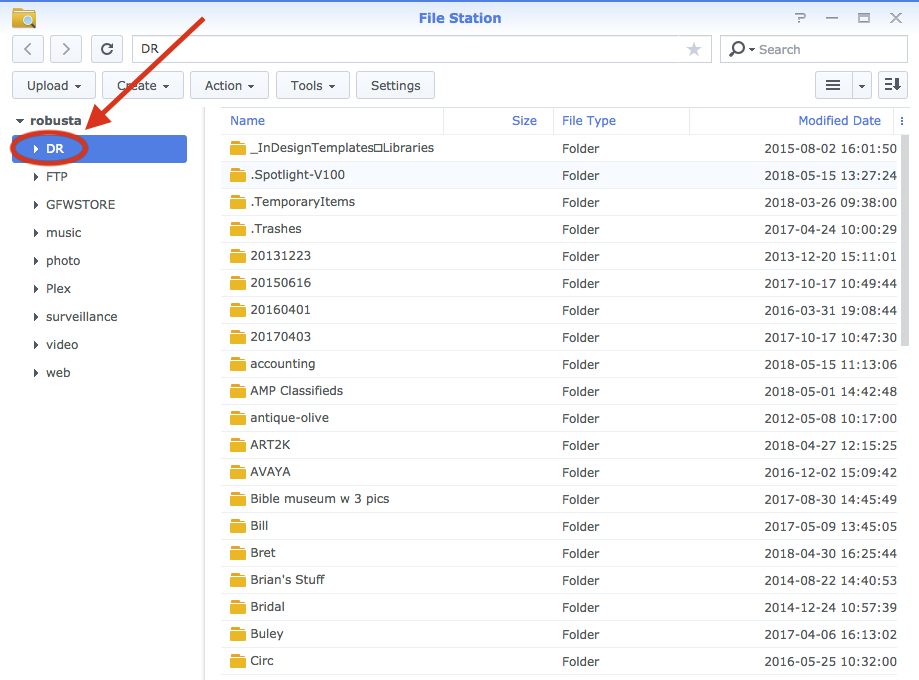
You will then see a window with your home NAS server share listed on the left. It's DR for Fairfield, DE for Davis, and MD for Placerville. Click on the share if it's not already selected.
You can then select any file or folder. If you right-click (alt-click if you are not using a mouse) on that file or folder, you will be presented with a list of options. You want to select "download" to get the selected file downloaded to your Chromebook.
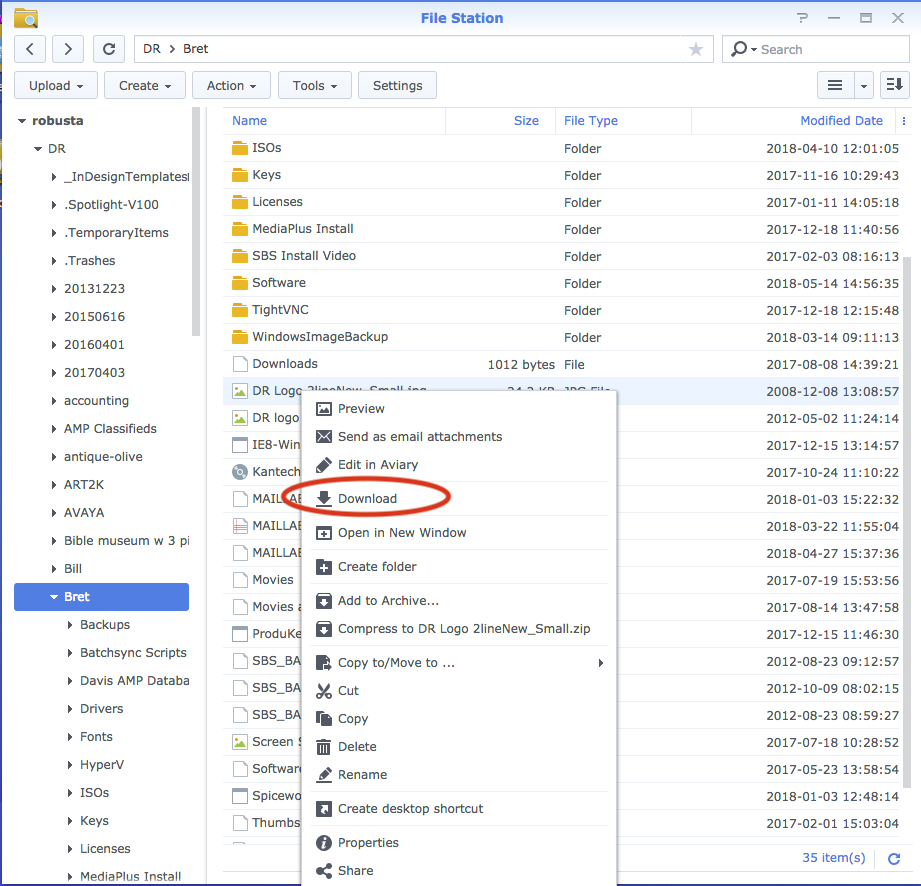
The file is then stored in the "Downloads" folder on your Chromebook and you can move it to your "Google Drive" account from there if you wish to do so.
**** PLEASE NOTE ****
This procedure can be done from any web browser on any PC or Mac. Following the instructions outline here will allow you to access all of the files on our NAS servers from anywhere in the world without a VPN -- It is not limited to just Chromebooks.
0 Comments