Step 0: Visit DFP and login if necessary
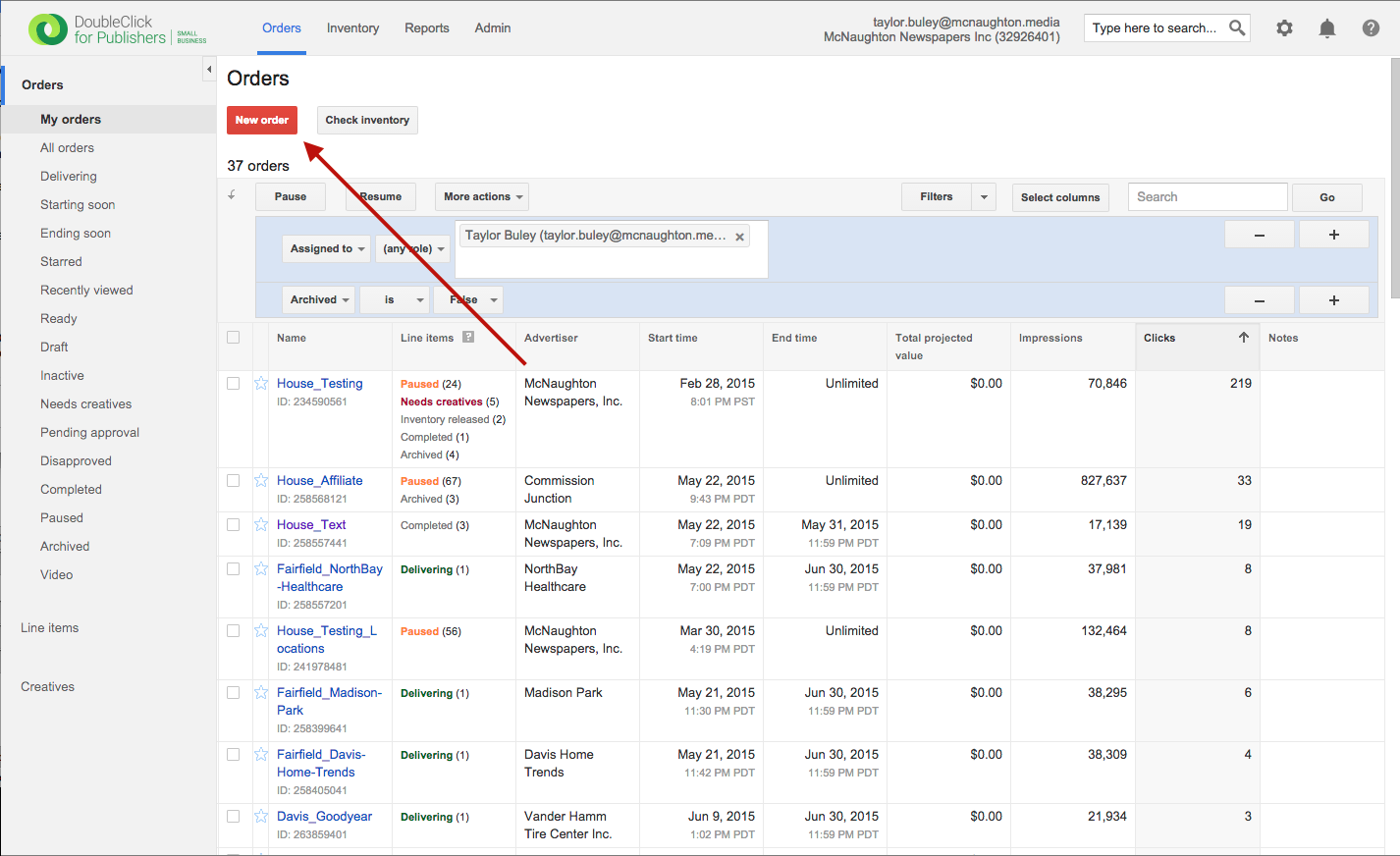
Step 1: Click the red "New Order" button from the Orders navigation tab (or the DFP home screen, which defaults to this tab).
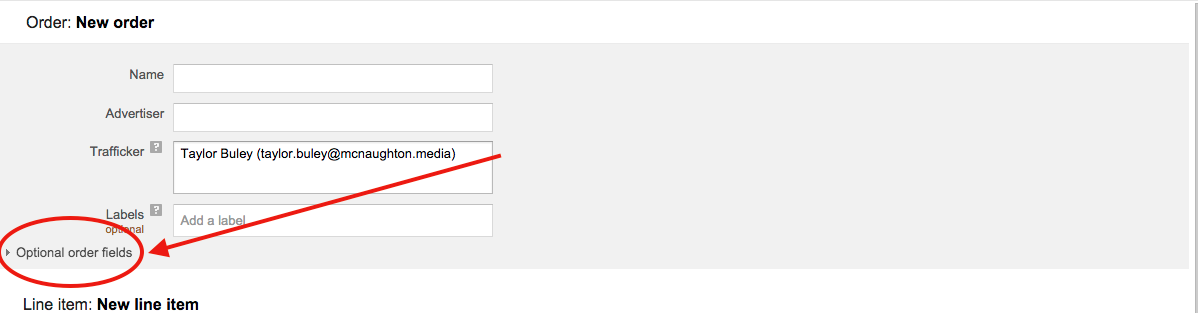
Step 2: Next we'll fill out the order information. But first, click on the "Optional order fields" dropdown to see the whole form.
Step 3: Fill out the A) Order name (red) B) Advertiser name (green) and C) Salesperson (blue).
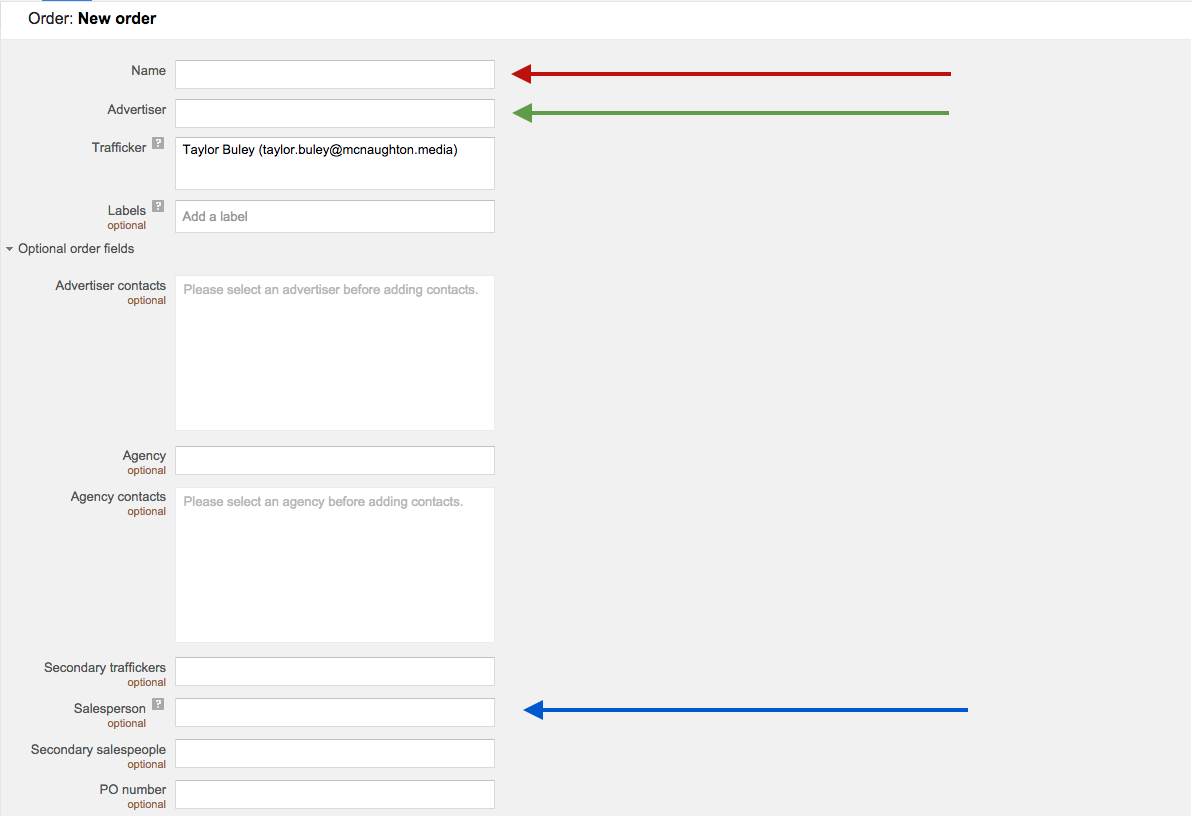
Step 3A: Fill out the Order name using the following convention "Location_Advertiser-Name_Rep" (e.g. Fairfield_Trampolines-Incorporated_TBuley" for rep T. Buley working out of Fairfield with advertiser Trampolines incorporated).
Underscores between items, dashes in place of spaces. Using a consistent naming structure makes finding the right thing much easier in DFP.

Step 3B: Fill out the Advertiser, tying your order to an "Advertiser Record."
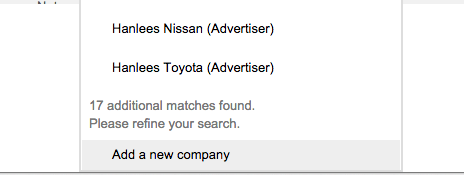
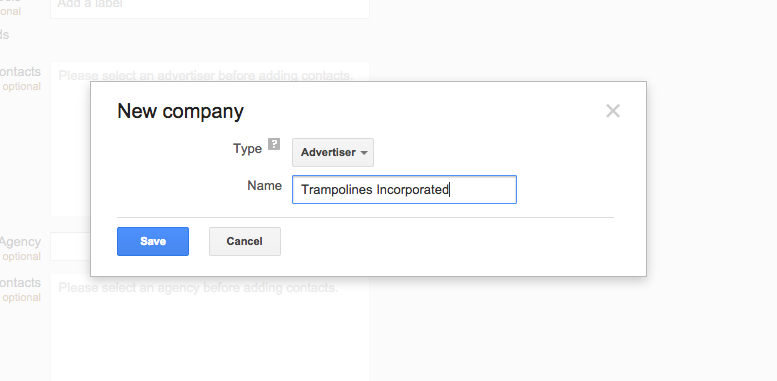
If you start typing, the advertiser field will present matching Advertiser Records if one already exists. Otherwise, scroll to the bottom of the list and click "Add a new Company" and fill out the quick form. (Advertiser Record management is also available to some users using the "Admin" navigation tab and the "Advertisers" subtab.)
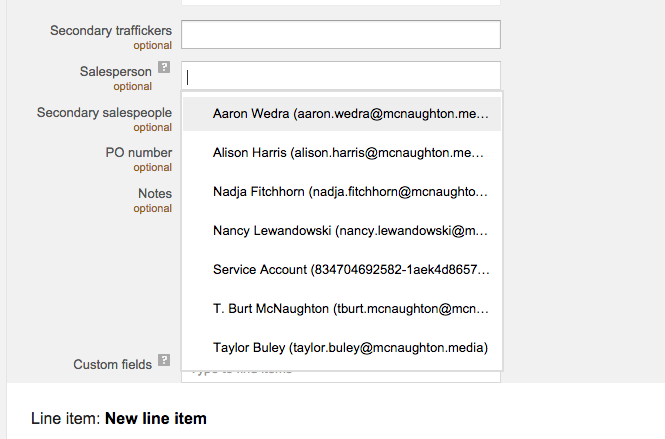
Step 3C: Fill out the Salesperson, tying your order to an "Salesperson Record."
You can only choose among existing, active DFP users.
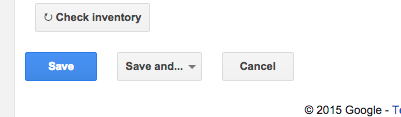
Step 4: You're done with the order, but you will have to create a Line Item and then hit the "Save" button seen below. Follow up with How Do I Add A Line Item To An Order? starting with Step 3 then attach a creative to your new line item to enable it to go live. Before going live the Order will have to be "approved" either by a sales manager or by a User with those privileges (this may be you: if so, there will be a green Approve button and you can optionally follow these instructions).
0 Comments