Step 1: Find the Order to which you're adding a Line Item. To do this, you'll likely to have to have created the Order yourself. If you didn't create the Order to which you'd like to add the Line Item, create a new Order and the Line Item along with it.
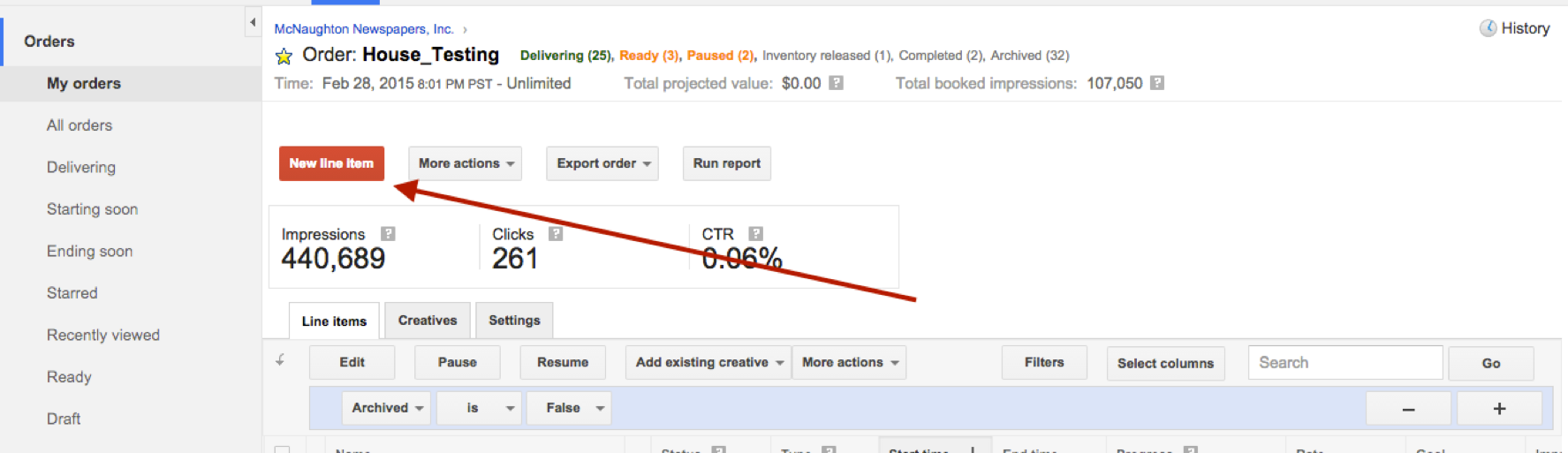
Step 2: Click the red "New Line Item" button.
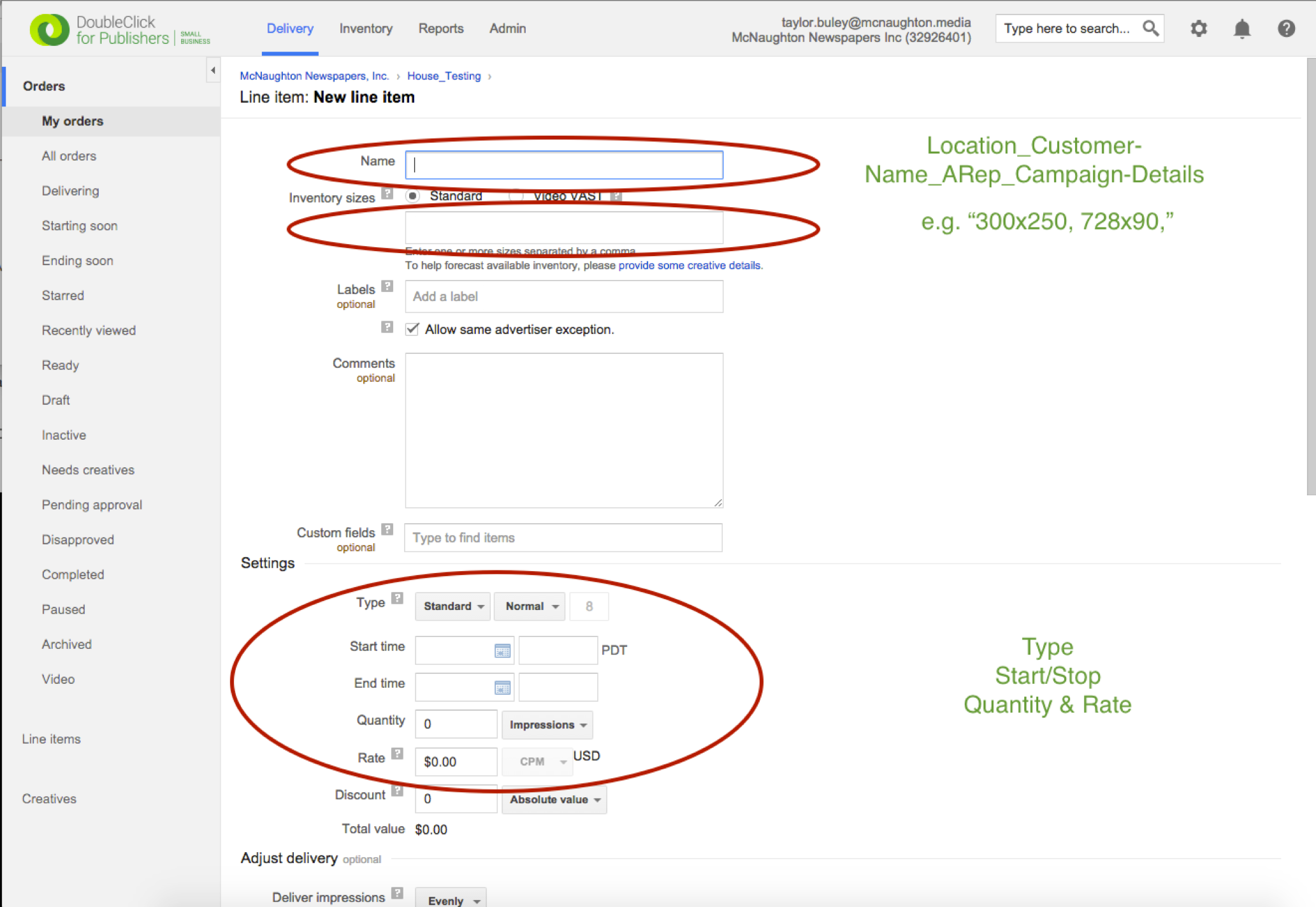
Step 3: Fill Out the Line Item per the deal's RFP. Use Mobile in the name, so you can distinguish the mobile part of the order. You must fill out the following: The Size should be set as a 300 x 250. The Settings should be set to mirror the Desktop part of the campaign with the impression quantity set for the mobile allocation of the total campaign.
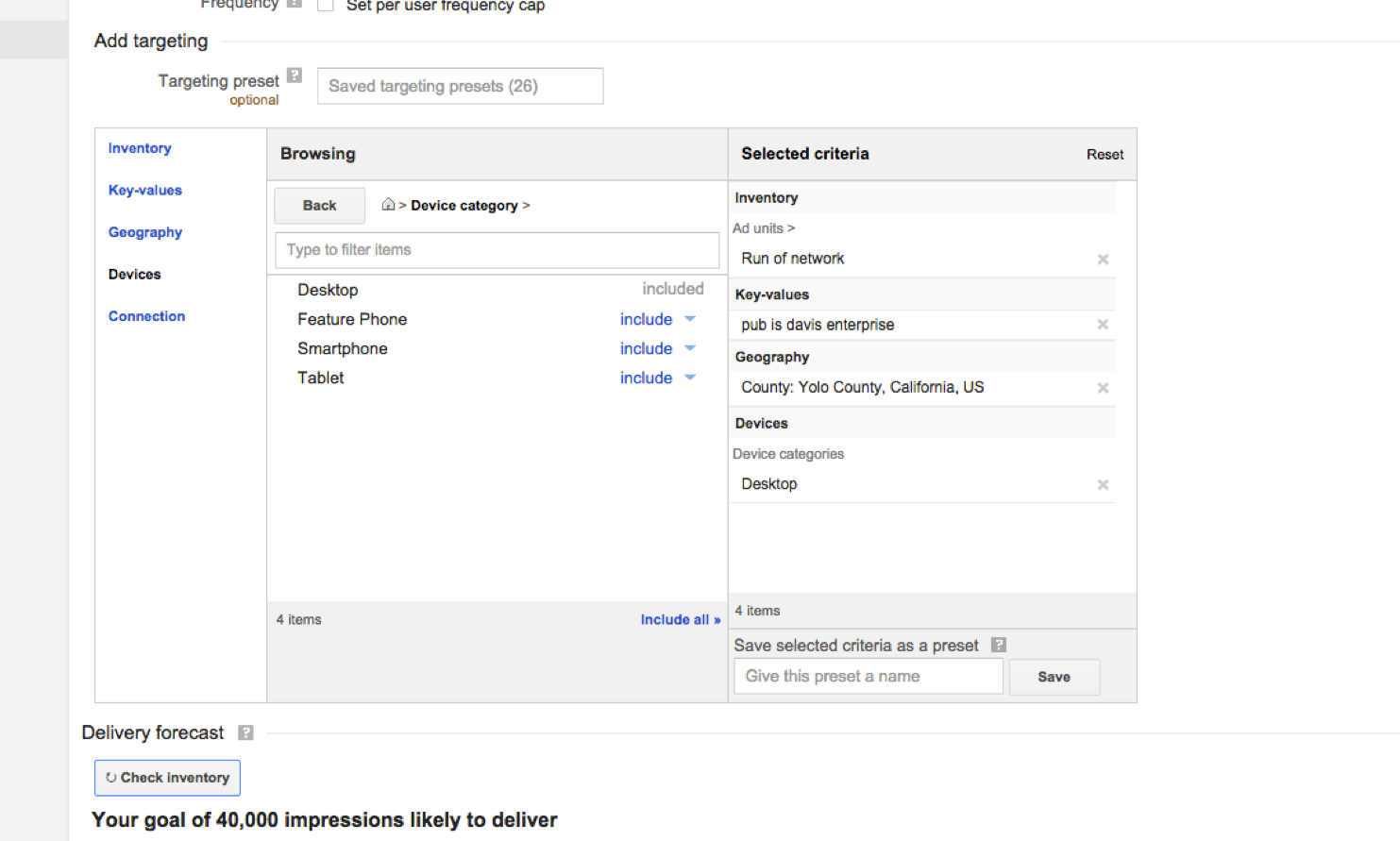
A targeting visual is below. Each blue link on the left represents a panel. Here are a couple targeting hints:
1) For Geography you may want to select a larger market area since this is on a mobile device
2) Select the target publication, use "key-values" panel with "pub" as the key and the name of the publication (e.g. "Daily Rebublic") as the value.
3) Select Devices and include Smartphone ONLY!
Step 4: Verify the available inventory for your Line Item by clicking the "Check inventory" button. The returned message will explain the availability situation.
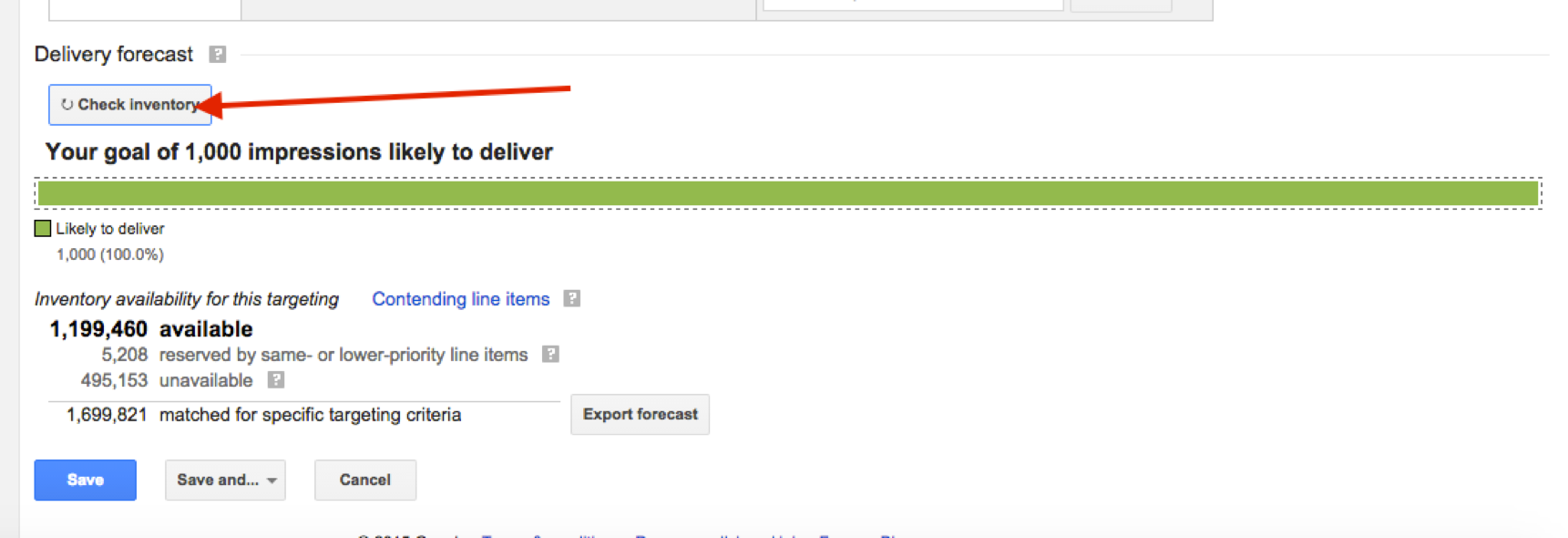
Step 5: Save the Line Item with the blue "Save" button. You may need to submit the Order for Approval via the "More Actions" dropdown on the Line Item screen.
Note the "Status" of the Line Item for more information about what you need to do next. "Draft" means it needs to be booked and submitted for review. "Needs Creatives" means you'll need to attach creatives for each size you've specified. Follow up with How Do I Add Creatives To A Line Item? to attach a creative to your new line item to enable it to go live.
Step 6: Upload Creative. You need to have a 920 x 767 ad unit created from the desktop 300 x 250. Upload the creative.
In the Target Ad Size Unit area select the 300 x 250. Select Save. The following error message will appear.
Allow creative size to differ from ad unit size.
The size of the uploaded asset doesn't match the size that was specified. The actual size was: width = 920, height = 767.
Check the checkbox next to this message and Save.
0 Comments