The Payment Form is a simple tool for taking online payments in a way that's easy for the customer, the merchant and our accounting team.
It's hosted on our websites at yourpublication.com/pay (e.g. www.dailyrepublic.com/pay) and powered by an online payments company called Stripe.
This tool is meant to be a simple way to take payments quickly. For reporting, lookup and other purposes, you'll need to use the Stripe Dashboard. For more on the differences between these tools, see When Do I Use The Payment Form vs. The Stripe Dashboard?
Below is an image of the form. Under that is an explanation of the fields.
Customer
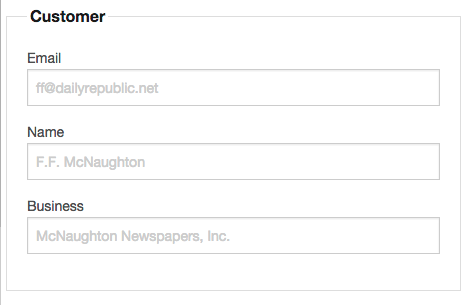
The Customer fields describe the person whose credit card is funding the transaction. Two fields are required: 1) an email, which is the primary way to identify a Customer Record, and either 2a) a person's name or 2b) a business name. If both a person and a business apply to the transaction, you should use all three fields.
Name and business name entities should be capitalized for accounting legibility.
Transaction
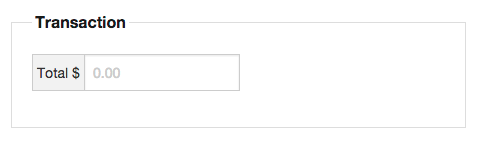
The Transaction area describes the amount of US Dollars involved in the transfer of payment from the customer to the business.
The "Total $" field is required and should be a number (without the dollar sign) using currency formatting, e.g. "1.23" for $1.23 or one dollar and twenty-three cents.
Merchant
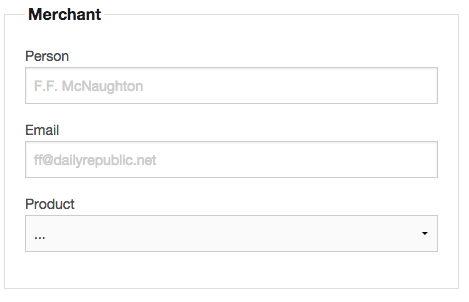
The Merchant area describes the business employee or group responsible for facilitating the payment.
None of the Merchant fields are required, however they are useful for accounting and reporting purposes and should not be omitted without good reason. This area includes a field for product type (e.g. Classified) and information about who made the transaction.
For reporting purposes, the fields for a person's name should use capitalization and the email should be a full, usable email address e.g. "ff@dailyrepublic.net"
Extras
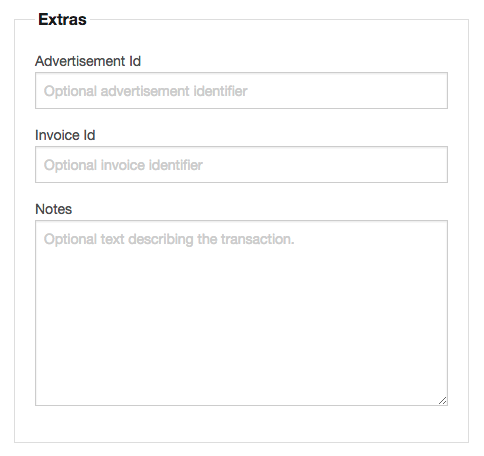
The Extras area has optional fields that are of use to specific product types, such as a field for a particular advertisement identifier and a free-text notes field.
Use the Notes field to attach to the transaction any text that doesn't fit into the form.
Ready Button

The Ready button starts the payment process. For more information, see the Payment Form section of How Do I Process A New Payment?
0 Comments